
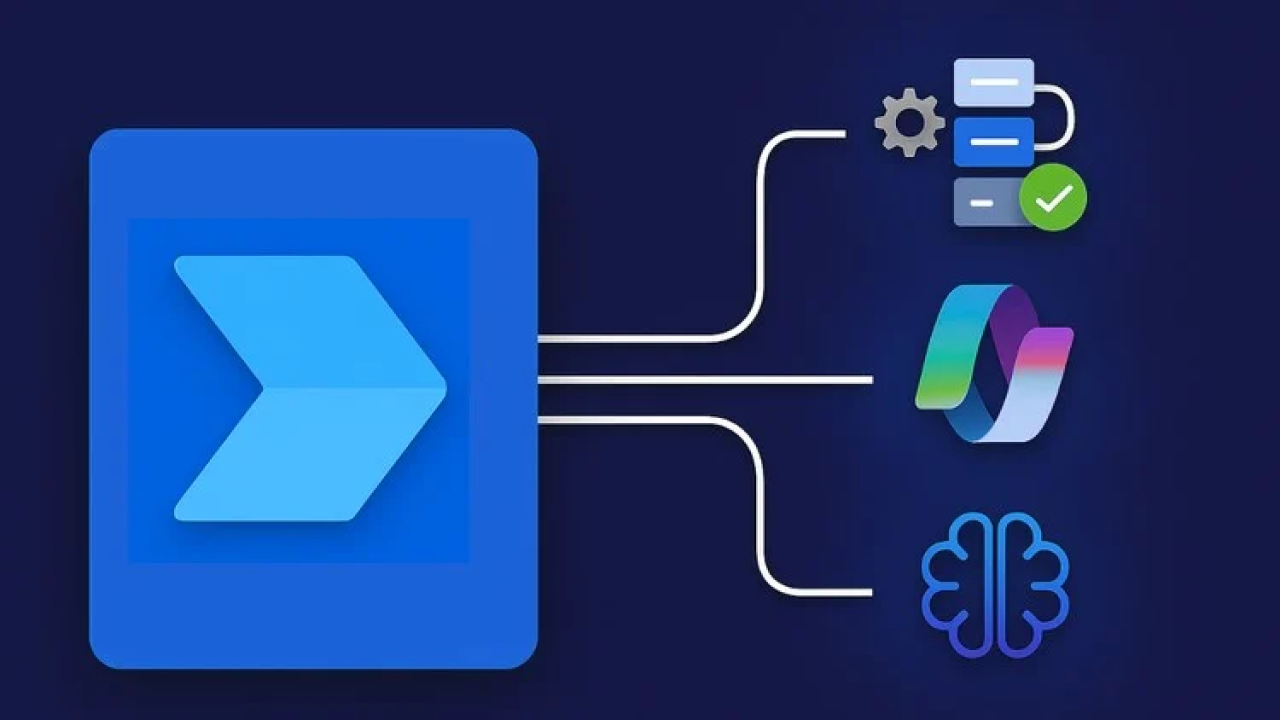
Most teams using Power Automate still build flows the slow way: clicking through menus, guessing at trigger logic, and debugging by hand. Microsoft has embedded AI throughout the platform to fix this, but the features are scattered across three separate layers that most users never connect. A Forrester Total Economic Impact study commissioned by Microsoft found organizations using Power Automate reported up to 199 percent ROI over three years (Forrester, 2023). The distance between that outcome and the average user’s experience is exactly where this guide operates.
This article covers every AI capability inside Power Automate in 2025 and 2026: Copilot-driven flow creation, AI Builder models, document processing, and process mining. You’ll know which features to activate first, how to avoid the most common configuration mistakes, and where Power Automate’s AI genuinely stops being the right tool. For a broader perspective on AI automation for small teams across the full software stack, that post covers the landscape beyond the Microsoft ecosystem.
Launch Your App Today
Ready to launch? Skip the tech stress. Describe, Build, Launch in three simple steps.
BuildTL;DR: Microsoft Power Automate includes three AI layers: Copilot for natural language flow creation, AI Builder for document and data processing, and process mining for identifying automation opportunities before you build. A Forrester study found Power Automate delivered up to 199 percent ROI over three years for surveyed organizations (Forrester, 2023). For workflow automation inside Microsoft 365, it’s one of the strongest tools available. For founders who need a full web application rather than a connected workflow, it’s the wrong tool entirely.
What AI Features Are Actually Built Into Power Automate?
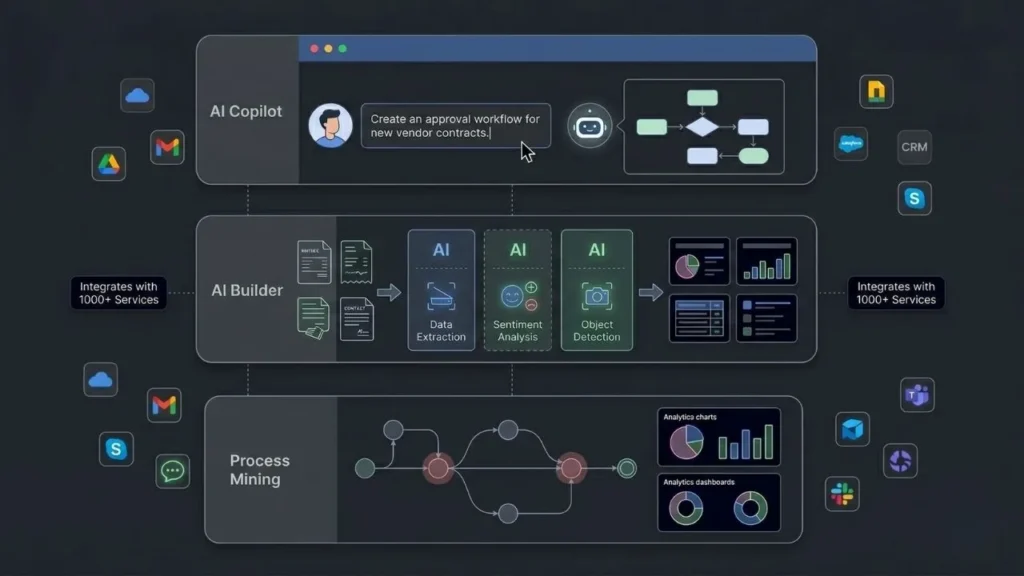
Power Automate includes three distinct AI layers, and most users only ever discover one. The first is Copilot, which generates complete flows from a plain English description. The second is AI Builder, a suite of pre-trained and trainable machine learning models you can drop directly into flows. The third is process mining, which analyzes your existing operations to identify automation opportunities before you build anything. According to Microsoft, Power Automate connects to more than 1,000 applications and services (Microsoft, 2024), giving these AI features a broad surface area to work across from day one.
Citation capsule: Microsoft Power Automate’s AI capabilities include Copilot for natural language flow generation, AI Builder with pre-built models for document processing, sentiment analysis, and object detection, and process mining for identifying workflow inefficiencies. According to Microsoft, the platform connects to more than 1,000 apps and services (Microsoft, 2024), making it one of the most widely integrated workflow automation tools available today.
Most users find Copilot first because it’s prominently placed in the flow creation interface. But AI Builder is where the real analytical work happens. If your team manually processes invoices, customer forms, receipts, or contracts, AI Builder’s document processing model can extract and route that data automatically without you building a single formula.
Process mining is the least-used feature and arguably the most strategically valuable. It connects to your existing systems, logs actual process execution data, and identifies where handoffs, delays, and errors cluster. Think of it as the workflow audit you should run before automating the wrong thing.
For a direct comparison of how Power Automate’s AI Builder stacks up against competitor platforms, that review covers the feature depth in full detail.
How Does Copilot in Power Automate Actually Work?
Copilot in Power Automate generates a complete flow from a natural language prompt, then lets you refine it through follow-up messages in a chat panel on the right side of the canvas. You don’t start with a blank trigger and drag connectors manually. You describe what you want, Copilot drafts the flow structure, suggests connectors, and maps the trigger-to-action sequence for your review. According to McKinsey Global Institute, nearly 45 percent of current work activities can be automated using existing technology (McKinsey Global Institute, 2023). Copilot lowers the barrier for reaching that automation potential without writing a line of code.
Citation capsule: Copilot in Microsoft Power Automate enables non-technical users to describe a workflow in plain English and receive a generated flow structure, including connector selection and action sequencing, without using the visual canvas builder. According to McKinsey Global Institute, 45 percent of work activities can be automated with existing technology (McKinsey Global Institute, 2023). Copilot extends access to this automation layer to anyone who can write a clear sentence.
How to Build Your First Copilot Flow Without Iterating Seven Times
The quality of a Copilot-generated flow is almost entirely determined by prompt specificity. Here’s the practical sequence that works:
- Open Power Automate and select Create from the left sidebar.
- Choose Describe it to design it from the flow creation options.
- Write a specific description. Vague prompts produce vague flows. Instead of “send an email when something happens,” write: “When a new row is added to the Sales Tracker list in SharePoint, send a Teams message to the Sales channel with the customer name, deal value, and the name of the person who added the row.”
- Review the generated flow structure before connecting accounts. Copilot makes good connector choices most of the time, but it sometimes selects the wrong version of a SharePoint or Outlook action.
- Add your connection credentials for each connector node before testing.
- Run a test with a real trigger. Don’t activate for production before you’ve seen it fire once with live data.
The most common mistake is activating a Copilot-generated flow without testing it. Copilot generates structure, not authentication. A flow that looks correct can fail silently on the first real trigger if credentials aren’t connected properly.
If your flow uses a SharePoint list as its trigger, always verify whether Copilot selected the site-level connector or the library-level connector. They behave differently, and Copilot chooses based on how your prompt is phrased rather than which one fits your use case. The library-level connector is almost always what you want for list-based triggers. Catching this before activation saves a round of confusing debugging.
When comparing Copilot’s flow generation against similar AI features in other automation tools, the Zapier vs Make AI workflow automation breakdown covers the alternatives in detail.
What Is AI Builder and Which Models Should You Start With?
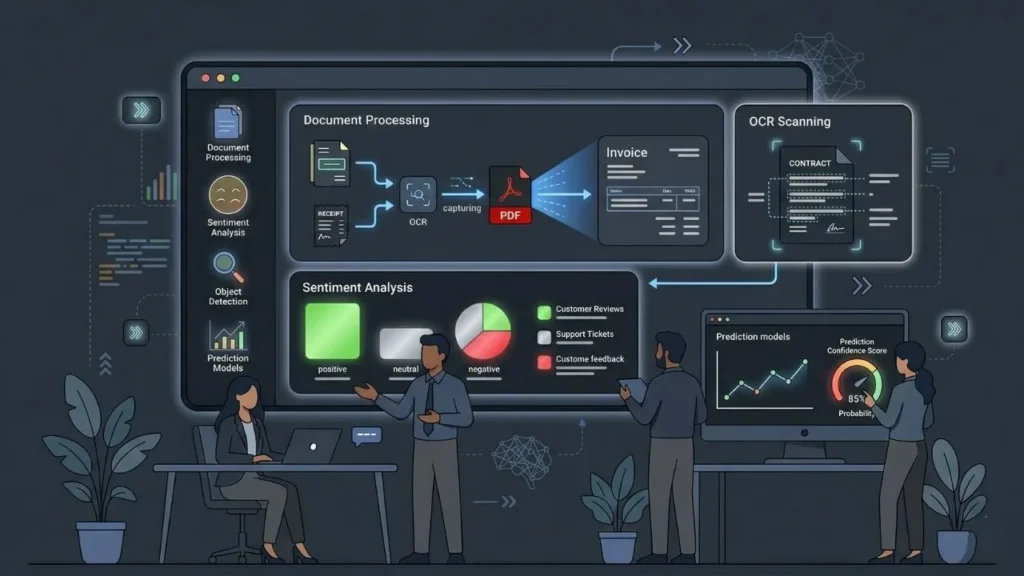
AI Builder is Power Automate’s machine learning module, and it includes both pre-built models you can use immediately and a custom model builder for organization-specific use cases. The right starting point depends on what your team processes most frequently. For most small business and mid-market teams, document processing and sentiment analysis deliver the fastest measurable return. According to Gartner, 70 percent of new applications developed by organizations will use low-code or no-code technologies by 2025 (Gartner, 2021), and AI Builder is designed to fit that shift directly into the existing Microsoft stack.
Citation capsule: AI Builder in Microsoft Power Automate includes pre-built models for document processing, sentiment analysis, object detection, and text recognition, available without any machine learning expertise or data science background. Gartner projected that 70 percent of new applications would use low-code or no-code technologies by 2025 (Gartner, 2021). AI Builder is Microsoft’s approach to making these capabilities usable by operators inside their existing workflow environment.
The Pre-Built Models Worth Activating First
Document processing: Extracts structured fields from invoices, purchase orders, receipts, and custom forms. Train it with five to ten sample documents and it handles the rest automatically.
Sentiment analysis: Classifies text as positive, neutral, or negative. Drop this into any flow that processes customer feedback, support tickets, or email threads to route by tone without manual review.
Text recognition (OCR): Pulls text from images and PDFs. Pair it with a SharePoint or OneDrive trigger to process scanned documents the moment they land in a folder.
Business card reader: Extracts contact information from uploaded business card photos and routes the data to a CRM or contact list automatically.
Object detection: Identifies and counts specific objects in images. Retail teams use this for shelf inventory checks. Field teams use it for equipment inspection without manual reporting.
The most underused AI Builder model is the prediction model, which lets you classify or forecast business outcomes using your own historical data. Most teams skip it because it sounds like data science. But if you have a spreadsheet with historical outcomes, which support tickets escalated, which sales quotes converted, which orders were returned, you can train a working prediction model in under an hour without writing any code. The output becomes a confidence score you can route on inside any flow. Teams that implement this stop triaging manually and start routing automatically based on probability.
For connecting AI Builder to your broader automation stack beyond the Microsoft ecosystem, the guide on no-code AI automation for small businesses covers cross-tool integration patterns that work alongside Power Automate.
How Do You Automate Document Processing With AI Builder?
Document processing automation in Power Automate follows a four-stage pattern: trigger, extract, validate, route. Get the trigger right and the rest scales without additional configuration. The trigger is typically a SharePoint or OneDrive folder where documents land. AI Builder extracts structured fields from each document. You validate against a confidence score threshold. Then you route: write to a database, send to a human for review, or update a downstream system automatically. According to Microsoft, AI Builder’s document processing model supports custom document types in addition to standard formats including invoices, receipts, and tax forms (Microsoft, 2024).
Citation capsule: Microsoft Power Automate’s AI Builder document processing model enables automatic data extraction from invoices, receipts, purchase orders, and fully custom document types without writing code. Microsoft confirms support for custom document types beyond standard business formats (Microsoft, 2024). Flows can route extracted data to databases, initiate approval processes, or flag low-confidence extractions for human review based on configurable thresholds.
Step-by-Step: Automate Invoice Processing in Under Two Hours
- Create a SharePoint document library called Invoices Inbox.
- Build a cloud flow triggered by “when a file is created in a folder” pointing to that library.
- Add an AI Builder action: Process and save information from invoices.
- Map the extracted fields (vendor name, invoice number, total amount, due date) to flow variables.
- Add a condition: if the confidence score is below 80 percent, send a Teams notification to your finance contact for human review. If above 80 percent, write the fields directly to your accounting spreadsheet or database record.
- Add a final step to move the processed file from Invoices Inbox to an Invoices Processed archive folder.
Based on implementation patterns from teams setting up this flow for the first time, the five to ten sample documents needed to train the model can typically be collected in under 30 minutes if invoices already exist somewhere in SharePoint. Model training takes less than 15 minutes. Most teams have automated invoice processing running within two hours of starting setup, which is significantly faster than configuring an equivalent workflow in traditional RPA tools.
Confidence thresholds matter more than most guides acknowledge. Setting your human-review trigger above 95 percent means you review almost everything. Setting it below 70 percent means you miss real extraction errors. Start at 80 percent and adjust based on your actual error rate over the first two weeks of live operation.
For teams routing extracted data into dashboards and reports, automating reports and dashboards with no-code tools covers the downstream step for turning that data into something visible.
Where Does Power Automate AI Genuinely Fall Short?
Power Automate AI is strong at automating what already exists inside the Microsoft 365 ecosystem, but it has clear limits that determine what you can actually build with it. It’s not an application builder. It connects apps and moves data between them, but it doesn’t create user interfaces, customer-facing portals, or product features. If you need a booking system, a client portal, a multi-role SaaS product, or any workflow that requires a user to log in and interact with a screen, Power Automate is the wrong layer for that job. According to Forrester, workflow automation tools deliver the highest ROI when applied to back-office processes that have high volume and predictable structure (Forrester, 2023).
Citation capsule: Microsoft Power Automate is optimized for back-office process automation within the Microsoft 365 environment. Forrester research indicates that workflow automation tools produce the strongest ROI in high-volume, structured internal processes rather than customer-facing product workflows (Forrester, 2023). For use cases requiring external user interfaces, custom data models, or features accessible to customers outside the Microsoft tenant, a dedicated application development platform is required.
Specific Limits to Know Before You Build
No external-facing application layer. Power Automate can send emails, post Teams messages, and write to SharePoint. It cannot serve a screen to a customer browser or power an interface accessible outside your Microsoft tenant on its own.
AI Builder requires a premium license. AI Builder credits are separate from base Power Automate licensing. Standard Microsoft 365 plans don’t include them by default, and production-scale document processing quickly exhausts trial allocations.
Copilot availability is inconsistent across tenants. Copilot in Power Automate requires a Microsoft 365 Copilot license or a standalone Power Automate Premium plan with Copilot enabled. Not all organizations have this active without additional licensing cost.
Custom model training requires labeled samples. AI Builder custom models need enough labeled examples to train on. Teams without clean historical document data have to collect samples before any automation can run.
Process mining requires separate licensing. It’s not included in standard Power Automate plans. It’s a distinct product with its own pricing tier.
The most common failure pattern for small businesses investing in Power Automate is using it to paper over a missing application layer. They build flows to send notifications, update spreadsheets, and email PDF forms, when what they actually need is a web application with a real database, user authentication, and a usable interface. The flows become more complex over time, break more frequently, and still don’t give the user experience the business actually needs. Recognizing this early saves months of flow maintenance for something a proper app would handle cleanly.
For a broader view of where AI automation tools genuinely fit across tool categories, that guide covers the full landscape with honest assessments of each tier.
When Should You Use imagine.bo Instead of Power Automate?

imagine.bo is the right tool when you need an actual web application rather than a workflow connecting existing apps. If you can describe what you want in plain English, imagine.bo’s Describe-to-Build feature generates a full-stack application: frontend, database schema, backend logic, and deployment, ready to use. Power Automate automates what already exists. imagine.bo creates what doesn’t exist yet. According to Gartner, the global low-code development market was valued at over $22 billion in 2023 and continues growing above 20 percent annually (Gartner, 2023), driven by founders and operators who need custom software without development teams behind them.
Citation capsule: imagine.bo is an AI-powered full-stack web application builder that generates production-ready applications from plain English prompts, including user interfaces, databases, authentication systems, and backend logic as a complete deployable product. Unlike workflow automation tools, it builds applications rather than connecting existing ones. Gartner valued the low-code development market at over $22 billion in 2023 with growth above 20 percent annually (Gartner, 2023), reflecting sustained demand for tools that build, not only integrate.
Where imagine.bo and Power Automate Work Together
Many non-technical founders end up using both tools at different layers. Power Automate handles back-office automation inside Microsoft 365, while imagine.bo builds the customer-facing or operational application those workflows feed data into.
A concrete example: a property management company uses Power Automate to route documents and trigger notifications inside their Microsoft tenant. The client portal where tenants log in, submit maintenance requests, and view their lease documents is built on imagine.bo using Describe-to-Build. The two tools operate at entirely different layers and don’t overlap.
The Hire a Human feature in imagine.bo is worth noting for teams with complex requirements. When AI-generated code reaches the edge of what it can produce without errors, users assign specific tasks to vetted engineers directly from the dashboard without leaving the platform. This is conceptually similar to Power Automate’s human approval steps, but applied to the application build itself rather than to data routing inside a flow.
imagine.bo’s Pro plan at $25 per month includes credit rollover, private projects, and a one-hour expert session before launch. For founders building their first production web application, that session alone typically prevents the configuration mistakes that cost days of rework.
To see how imagine.bo compares to other no-code app builders across pricing and capability, that breakdown covers the full competitive field.
FAQ: AI in Microsoft Power Automate
How do I enable Copilot in Microsoft Power Automate?
Copilot in Power Automate is available with a Microsoft 365 Copilot license or a Power Automate Premium plan with Copilot enabled by your tenant administrator. When active, it appears as the “Describe it to design it” option on the flow creation screen. According to Microsoft, Copilot for Power Automate is available across cloud flow creation for eligible tenants as of 2024 (Microsoft, 2024). Check your license tier before assuming it’s available, since many standard Microsoft 365 Business plans don’t include it by default.
What is AI Builder in Power Automate and does it cost extra?
AI Builder is the machine learning module in Power Automate with pre-built models for document processing, sentiment analysis, OCR, and forecasting. Yes, it costs extra. AI Builder uses a credit system separate from standard Power Automate licensing. According to Microsoft, tenants receive a base allocation of AI Builder credits per license type, with additional credits available for purchase (Microsoft, 2024). Most Microsoft 365 Business plans don’t include enough credits for production-scale document processing without a dedicated AI Builder add-on.
Can Power Automate replace a custom web application?
No. Power Automate automates workflows between existing applications and services. It doesn’t create user-facing interfaces, customer portals, or features accessible to people outside your organization’s Microsoft tenant. According to Forrester, automation tools consistently deliver the strongest ROI on internal, back-office, structured processes rather than customer-facing product workflows (Forrester, 2023). For anything requiring a login screen, custom UI, or product features visible to customers, you need an application builder, not a workflow tool.
How accurate is AI Builder’s document processing?
Accuracy varies by document type and the quality of your training samples. Microsoft states that with at least five labeled sample documents, the model achieves usable extraction accuracy for standard document types including invoices and receipts (Microsoft, 2024). Teams typically see error rates below five percent on well-trained models after two to four weeks of live operation with iterative threshold adjustments. More training samples and a lower confidence cutoff for human review improve accuracy on high-variability or complex document formats.
Is Power Automate’s AI suitable for non-technical users?
Yes, for basic to intermediate flows. Copilot removes the need to understand flow architecture to get started, and AI Builder’s pre-built models require no machine learning background. According to Microsoft’s own user research, the majority of Power Automate flows in production are built by users without formal programming experience (Microsoft, 2023). The learning curve steepens when you need custom AI Builder models, complex branching logic, or integrations with non-Microsoft systems that require API configuration.
What to Take Away and Where to Go Next
Power Automate’s AI features are genuinely useful once you know which layer solves which problem. Copilot handles flow creation from plain English. AI Builder handles data extraction and analysis inside those flows. Process mining tells you what to automate before you build anything. Used together, they can remove significant manual work from any team operating inside the Microsoft 365 stack.
The limit is real and worth stating plainly: Power Automate is not an application builder. When you need a customer portal, a SaaS product, or any user-facing system, you need a different tool. That’s where imagine.bo’s Describe-to-Build approach is worth testing directly. You describe the application, the AI generates the full-stack version, and you refine it through conversation without writing code or managing infrastructure.
Start with the single flow that costs your team the most time each week. Use Copilot to draft it. Test before activating. Add an AI Builder model if the flow touches documents or unstructured text. Once it’s stable, move to the next process. For a deeper look at the AI features already covered in Power Automate’s platform, that guide extends several of the topics covered here.
If your next step is the application layer rather than another workflow, start with imagine.bo’s Free plan and explore how AI-powered no-code app development works in practice before committing to a paid tier.
Related Articles
- Power Apps AI Builder: Supercharge Your Business Apps with AI—No Code Required
- Unlock Automation Power: Zapier vs. Make vs. Power Automate – The 2024 Showdown
- AI Builder in Power Apps: The 2025 End-to-End Playbook
- Top 5 Ways to Automate Your Business Tasks Using AI Tools
- Supercharge Your Workflow: Mastering AI Automation Tools
Launch Your App Today
Ready to launch? Skip the tech stress. Describe, Build, Launch in three simple steps.
Build