
Master the art of troubleshooting visual workflows, fixing logic errors, and launching flawless applications with this comprehensive no-code debugging strategy.
Introduction
Building an application without writing a single line of code is empowering. Platforms like Imagine.bo have democratized software creation, allowing founders, product managers, and creative thinkers to bring complex ideas to life visually. But as any seasoned builder knows, the “no-code” label doesn’t exempt you from the realities of software logic. Things break. Workflows stall. Data doesn’t show up where it’s supposed to.
Launch Your App Today
Ready to launch? Skip the tech stress. Describe, Build, Launch in three simple steps.
BuildWelcome to the world of debugging.
In traditional development, debugging often involves staring at terminal windows and sifting through thousands of lines of syntax. In the context of Imagine.bo, debugging looks different—it is visual, logical, and often more intuitive—but the core principles remain the same. It is the detective work of development. It is the process of identifying why your application is behaving differently than you intended and applying a fix.
For creators on Imagine.bo, mastering debugging is the difference between a frustrating hobby project and a robust, scalable product. When you know how to effectively troubleshoot mindfuly, you stop fearing errors and start seeing them as signposts pointing toward a better user experience.
This guide will teach you a professional no-code debugging strategy. We will move beyond “guessing and checking” to a systematic approach that saves time, reduces stress, and ensures your Imagine.bo applications run exactly as planned.
What Is Debugging in No-Code Apps?
Before we dive into the “how,” we must understand the “what.”
Debugging is the methodical process of finding and resolving bugs (defects or problems) that prevent correct operation of computer software or a system. In a visual development environment like Imagine.bo, you aren’t hunting for missing semicolons or syntax errors. Instead, you are looking for logic gaps, configuration mismatches, and workflow interruptions.
Visual vs. Code Debugging
In traditional coding, a bug might be a NullReferenceException caused by a typo in a variable name. In no-code, that same error manifests differently. You might see a blank user profile card because the “Current User” data source wasn’t passed correctly to the group element.
- Code Debugging: focused on syntax, memory management, and execution context.
- No-Code Debugging: focused on data flow, conditional logic, and event triggers.
4 Common No-Code Bug Types
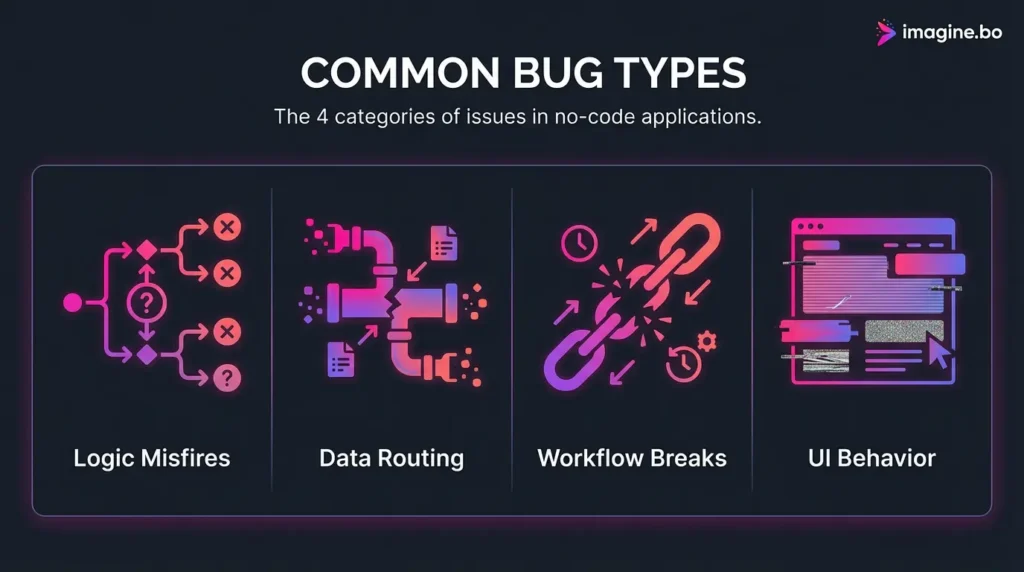
On Imagine.bo, bugs typically fall into four categories. Recognizing which category your issue belongs to is the first step in your no-code debugging strategy. You can also read more about no-code development mistakes to avoid to prevent these before they happen.
- Conditional Logic Misfires: You set a workflow to run only if a user is logged in, but it runs for everyone. Or, you have a multi-step form that skips step 2. These are errors in your If/Then logic.
- Data Routing & Binding Problems: This is the most common issue. You expect to see “John Doe” on the screen, but you see “Parent Group’s User” or nothing at all. This usually means the data isn’t being passed from the database to the visual element correctly.
- Workflow Breaks: A sequence of actions stops halfway through. For example, a “Sign Up” button creates the user account but fails to send the welcome email or redirect them to the dashboard.
- Unexpected UI Behavior: Elements overlapping, pop-ups not closing, or responsiveness breaking on mobile devices. While often seen as “design” issues, these are usually rooted in the logic of responsive settings or conditional visibility (e.g., “Element is visible on page load” is unchecked).
Understanding that you are dealing with a logic puzzle, rather than a broken machine, is key to staying calm and solving the problem.
Step-by-Step Debugging Strategy
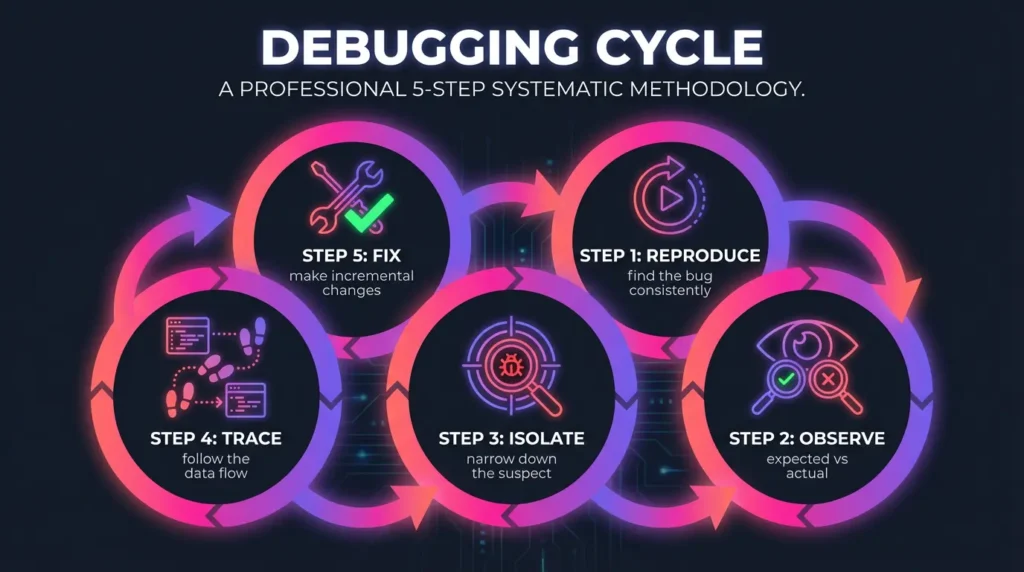
When something goes wrong in your app, the temptation is to immediately start changing settings at random. Resist this urge. Random changes often introduce new bugs while failing to fix the original one.
Instead, adopt this professional, five-step debugging cycle.
1. Reproduce the Issue Consistently
You cannot fix what you cannot find. Before you touch a single setting in the Imagine.bo editor, go to your live app or preview mode and try to make the error happen again.
- Does it happen every time you click the button?
- Does it only happen for a specific user type (e.g., Admins vs. Users)?
- Does it happen on mobile but not desktop?
Goal: Create a recipe for the bug. “If I log in as User A and click Button B, Error C happens 100% of the time.”
2. Observe: Expected vs. Actual
Write down (literally, on a notepad) what you expected to happen and what actually happened.
- Expected: User is redirected to
/dashboard. - Actual: User stays on
/loginand the button spins forever. This gap defines the scope of your investigation.
3. Isolate the Workflow or Component
Narrow down the suspect. If the “Sign Up” process is failing, the issue is likely within the specific Workflow attached to the “Sign Up” button. Ignore the rest of the app. In Imagine.bo, zoom in on the specific logic flow that triggers the action.
- Is the issue in the trigger? (e.g., Button Click)
- Is it in the action? (e.g., Create a Thing)
- Is it in the display? (e.g., Text element)
4. Use Visual Tracing and Logs
This is where Imagine.bo shines. Use the platform’s debugger bar or inspector. Run the workflow in “Slow Mode” or “Step-by-Step” mode. Watch the data move through the system.
- At step 1, did the user get created?
- At step 2, did the system catch an error?
- Look at the variables. Is
Current User's Emailempty?
5. Make Incremental Changes and Verify
Once you have a hypothesis (“I think the email field is empty because the input isn’t set to ‘autofill'”), make one change. Then, go back to Step 1 and try to reproduce the bug.
- If the bug is gone, you win.
- If the bug remains, undo your change and try the next hypothesis.
- Crucial: Never make 5 changes at once. If it starts working, you won’t know which change fixed it, and you might have broken 4 other things in the process.
Practical Techniques for No-Code Debugging
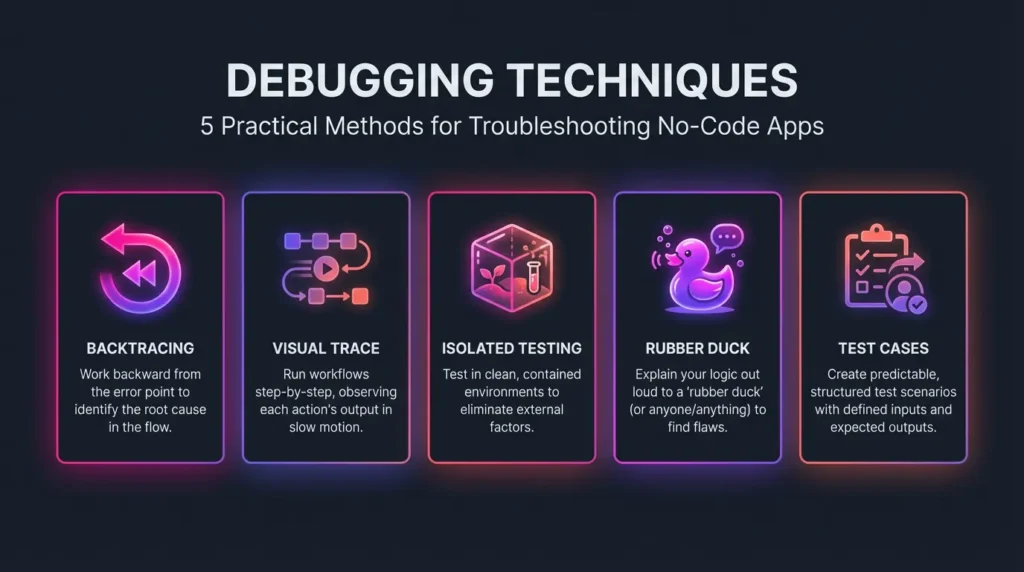
Now that we have a strategy, let’s look at specific tactical moves you can use within the Imagine.bo editor. These are adapted from professional software engineering but tailored for a visual environment. For a deeper dive into thinking outside the box, check out our guide on creative debugging for no-code builders.
The “Backtracing” Technique
Start from the error and work backward.
- Scenario: A text element shows the wrong date.
- Action: Click the text element. Look at its data source. It says
Parent Group's Date. - Step Back: Click the Parent Group. What is its data source? It says
Page Parameter: date. - Step Back: Look at the URL. Is the parameter there? No.
- Conclusion: The issue isn’t the text box; it’s the link that sent the user to this page. You just found the bug by walking backward.
The “Visual Trace” & Slow-Motion Run
Imagine.bo allows you to run workflows step-by-step. This is the most powerful tool in your arsenal. When a complex workflow fails (e.g., a payment processing flow), turn on the Step-by-Step Debugger.
- Trigger the workflow.
- The app will pause before the first action.
- Inspect the data. Does the app know the price? Does it know the user’s credit card token?
- Advance one step. Did the payment go through?
- If the workflow stops or errors out on Step 3, you know exactly where the logic broke.
Testing in Isolated Environments
Sometimes an app is too complex to debug a single feature. Create a “Sandbox Page” in Imagine.bo. Copy the problematic element or workflow to a blank page with no other distractions, plugins, or complex design elements.
- Does it work here?
- Yes: The issue is a conflict with something else on your original page (perhaps a popup or a conflicting workflow).
- No: The issue is fundamentally in the logic of that element itself.
The “Rubber Duck” Method
This is a legendary concept in computer science. Place a rubber duck (or imagine one) on your desk. Explain your workflow to the duck, line by line, out loud.
- “Okay, Duck. First, the user clicks the button. Then, the system checks if the password is valid. Then… wait.”
- Realization: “I never told the system to check if the password matches the confirmation field!” Verbalizing logic forces your brain to slow down and often reveals the gap in your thinking.
Creating “Predictable” Test Cases
Don’t test with random data. Create a Test User in your database named “Testy McTester.” Give this user simplified attributes (e.g., a short name, a standard Gmail address, no special characters). Use this user for all debugging. This removes variables like “weird data formatting” from the equation so you can focus on the logic.
Tools and Resources on Imagine.bo
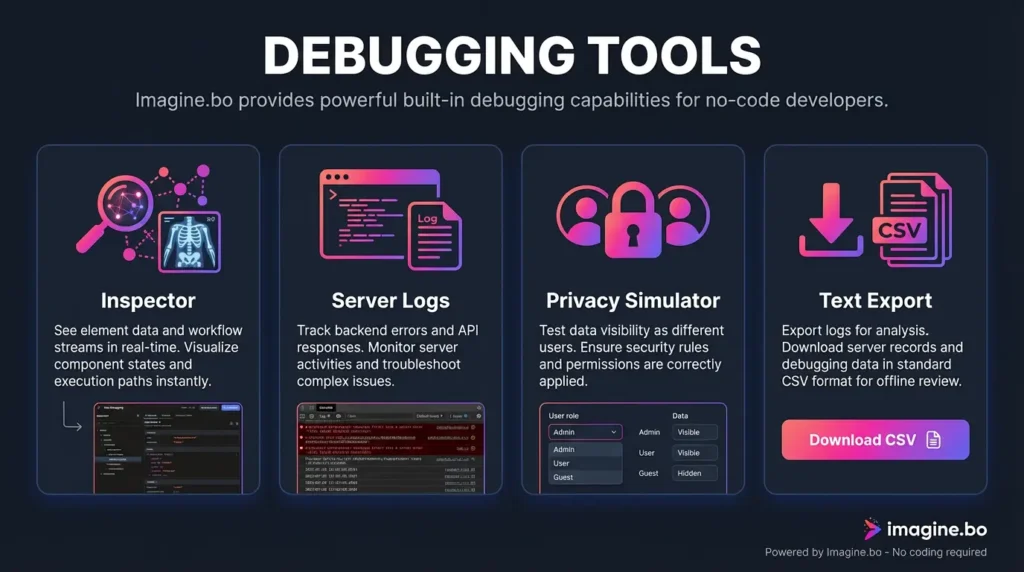
To execute a successful no-code debugging strategy, you need to know your toolkit. Imagine.bo comes equipped with native features designed specifically for this phase of development. For a full list of essential utilities, read about minimalist debugging tools.
1. The Imagine.bo Inspector (Debugger)
The Inspector is your X-ray vision. When running your app in “Version-test” or “Debug Mode,” an icon usually appears in the corner of your screen. Clicking this opens a panel that shows:
- Element Inspector: Click any button or text on the screen to see its current width, height, visibility status, and exactly what data it is holding.
- Workflow Stream: A list of recent events. It tells you “Button A was clicked at 10:00:01 AM” and lists the actions that followed.
2. Server Logs
Sometimes, the error happens on the “backend” (the server), invisible to the user. If a workflow involves sending an API call to Stripe or updating a database record, and it fails silently, check the Server Logs tab in your Imagine.bo dashboard. Understanding essential backend skills can help interpret these logs effectively.
- Look for red flags or “Error” statuses.
- Expand the log entry to see the “Error Message” returned by the server. It might say something specific like “Stripe Error: Card Declined” or “Database Error: Permission Denied.”
3. Privacy Rules Simulator
A unique aspect of no-code apps is “Privacy Rules” (who can see what). A common bug is data not showing up because the current user doesn’t have permission to view it. Use the “Run As” feature in Imagine.bo.
- Select a specific user from your database in the editor.
- Run the app as that user.
- If data disappears, your Privacy Rules are likely too strict.
4. Text Export/Trace
For extremely complex logic, Imagine.bo often allows you to export your logs as a CSV or text file. You can import this into a spreadsheet to analyze patterns over time (e.g., “The workflow fails every Tuesday” or “It only fails when the user’s name has an apostrophe”).
Best Practices for Faster Debugging
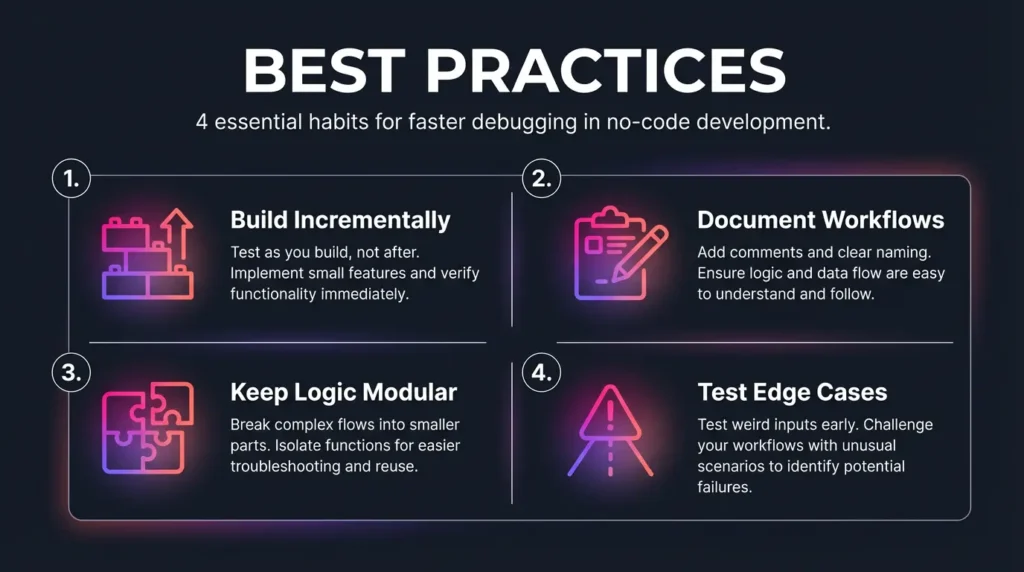
The best way to fix bugs is to prevent them—or at least make them easy to find. Implementing these best practices will speed up your troubleshooting process significantly. You can also leverage feature flags to safely test new functionalities without breaking the live app.
Build and Test Incrementally
Never build an entire application in one sitting without testing. The “Big Bang” approach is a recipe for disaster.
- Bad: Build the Login, Onboarding, Dashboard, and Profile pages, then hit “Preview.”
- Good: Build the Login button. Test it. Build the input fields. Test them. Build the redirect. Test it. When you build incrementally, you know that if a bug appears, it exists in the last thing you touched. This is a crucial strategy when you want to launch your startup fast.
Document Your Workflows
In the Imagine.bo editor, use the Notes or Comments feature. Label your workflows.
- Instead of leaving a workflow named “Button B Clicked,” rename it to “Sign Up Flow – Creates User & Sends Email.”
- Add comments on complex logic: “Note: This condition checks if the user is over 18.” Six months from now, when you need to debug this, you will thank your past self for these roadmaps.
Keep Logic Modular
Avoid “God Workflows”—single workflows that do 50 different things. If a workflow has 20 steps, break it into smaller “Custom Events” or “Reusable Workflows.”
- Workflow A: Creates User. Trigger Workflow B.
- Workflow B: Sends Email. Trigger Workflow C.
- Workflow C: Redirects to Home. If the email fails, you know the bug is in Module B, and you can ignore A and C.
Test Edge Cases Early
Don’t just test the “Happy Path” (where everything goes right). Test the weird stuff immediately.
- What happens if the user leaves the email field blank?
- What happens if the user clicks the button twice rapidly?
- What happens if the internet cuts out? Building “error handling” logic (like disabling a button after the first click) prevents these bugs from reaching your users. For more on this, see our guide on common mistakes in no-code SaaS development.
A Debugging Workflow Example
Let’s walk through a real-world scenario on Imagine.bo to see this no-code debugging strategy in action.
The Symptom: You have built a “Contact Us” form. When the user clicks “Submit,” a popup should say “Message Sent,” and the message should be saved to the database. Currently, when you click “Submit,” the popup appears, but no data is saved to the database.
Step 1: Reproduce You open the app in Preview Mode. You fill out the form as “John Doe” with the message “Hello.” You click Submit. The popup appears. You check the database. No new entry. The bug is reproduced.
Step 2: Isolate You open the Imagine.bo editor and find the “Submit Button” workflow. You see two actions:
- Show Popup “Success”
- Create a new thing: “Message”
Step 3: Visual Trace (The “Aha!” Moment) You turn on the Step-by-Step Debugger and fill out the form again.
- You click Submit. The debugger pauses.
- Action 1 (Show Popup): Runs successfully. Green light.
- Action 2 (Create Message): The debugger highlights this step. You look at the data being sent to the database.
- Observation: The field
Contentis showing as(empty).
Step 4: Backtrace Why is Content empty? You look at the configuration for “Create a new thing.”
- You set
Content=Input A's Value. - You look at your form design. You hover over the big message box.
- Discovery: The message box is named
MultiLine Input B. The subject line isInput A. - The Bug: You were saving the Subject line (which you left blank in your test) into the Content field, instead of the actual Message body.
Step 5: Fix and Verify
- Fix: Change the workflow to save
Content=MultiLine Input B's Value. - Verify: Reload the page. Fill out the form. Click Submit. Check the database. The message is there!
- Cleanup: Rename your inputs to
Input SubjectandInput Message Bodyso you don’t make this mistake again (Best Practice).
When to Get Human Support
Sometimes, you follow every step, trace every variable, and the issue still makes no sense. You might have hit a platform bug or a complexity wall.
1. Reaching the Limit of Platform Tools If the server logs show “Internal Server Error” with no explanation, or if the visual editor physically crashes when you try to open a specific workflow, this is likely not your fault.
2. Imagine.bo’s Developer Assistance Most professional no-code platforms, including Imagine.bo, offer tiered support.
- Community Forums: Post screenshots of your debugger logic. The community is often faster than official support because they have likely faced the exact same issue.
- Official Support Tickets: Use this for account issues, billing, or suspected platform outages.
- Experts/Agencies: If your logic involves complex API recursive loops or third-party integrations (like specialized banking APIs), hiring a vetted Imagine.bo expert for one hour of consultation can save you weeks of frustration.
Conclusion
Debugging is not a sign of failure; it is a vital part of the creation process. Every app, from the smallest MVP to the largest enterprise platform, has bugs. The difference between a novice and a pro is not the absence of bugs, but the method used to solve them.
By adopting this no-code debugging strategy—moving from frantic clicking to calm observation, isolation, and tracing—you gain control over your Imagine.bo applications. You stop hoping things work and start ensuring they work.
Ready to bulletproof your app? Open your Imagine.bo editor right now. Pick that one feature that has been acting glitchy, turn on the specific Step-by-Step Debugger, and apply the Backtracing technique. Your perfect workflow is just one discovered bug away.
Launch Your App Today
Ready to launch? Skip the tech stress. Describe, Build, Launch in three simple steps.
Build