Most founders spend over three hours a day on email. That’s 15-plus hours a week going to replies that repeat themselves every single month: the pricing question, the scheduling request, the “how do I get started” message. The cost isn’t just time, either. Research shows each interruption takes nearly 23 minutes to recover from, and email is interruption by design.
This tutorial walks you through the exact no-code workflow for automating your email responses with AI. You’ll learn which tools to connect, how to write prompts that produce replies that sound like you, and how to build the whole system without touching a line of code. If you want the broader picture first, automating workflows without writing code is a solid foundation before you start connecting accounts.
Launch Your App Today
Ready to launch? Skip the tech stress. Describe, Build, Launch in three simple steps.
BuildTL;DR: According to McKinsey Global Institute, knowledge workers spend 28% of their workday managing email. This tutorial shows you how to build an AI-powered email automation system using Gmail, Zapier, and OpenAI in under two hours, with zero coding required. Most founders can automate 40 to 60 percent of their inbox using five targeted response templates.
Why Should You Automate Email Responses at All?
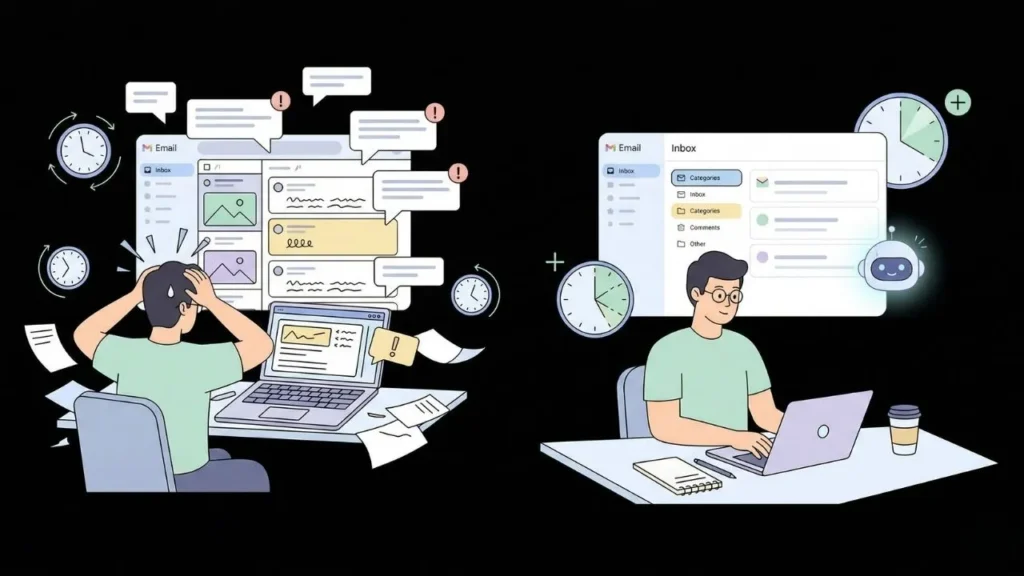
Email is the highest-volume, most repeatable task in a founder’s week, which makes it one of the best candidates for AI automation.
According to McKinsey Global Institute, knowledge workers spend approximately 28 percent of their working hours managing email (McKinsey, 2012, widely cited and replicated through 2024). For someone working 50 hours a week, that’s 14 hours sitting in the inbox. A significant fraction of that time goes to messages sharing the same intent: the same sales questions, the same onboarding confusion, the same scheduling dance. These patterns repeat every week.
Automating these replies does not produce robotic, impersonal responses. Done correctly, it produces fast, on-brand replies the moment someone sends a message. Response speed is a real business metric. According to Harvard Business Review, leads contacted within one hour are seven times more likely to qualify than those reached after 24 hours (HBR, 2011).
The actual cost of email isn’t the minutes spent typing. It’s the interruptions. Research by Gloria Mark at UC Irvine found that recovering focus after a single work interruption takes an average of 23 minutes (UC Irvine, 2008). Six email checks a day could cost you over two additional hours of deep work, regardless of how long each reply takes to write. Automating even 40 percent of your inbox may return more value through recovered focus than through time saved on replies.
Citation capsule: According to McKinsey Global Institute, employees spend roughly 28 percent of their working hours on email. Research by Gloria Mark at UC Irvine shows work interruptions require an average of 23 minutes to recover from. For knowledge workers receiving dozens of emails daily, these two findings together make email automation one of the highest-impact automation targets available.
For more on how AI is changing small-team productivity, read AI automation for small teams and business efficiency.
What Tools Do You Need to Get Started?
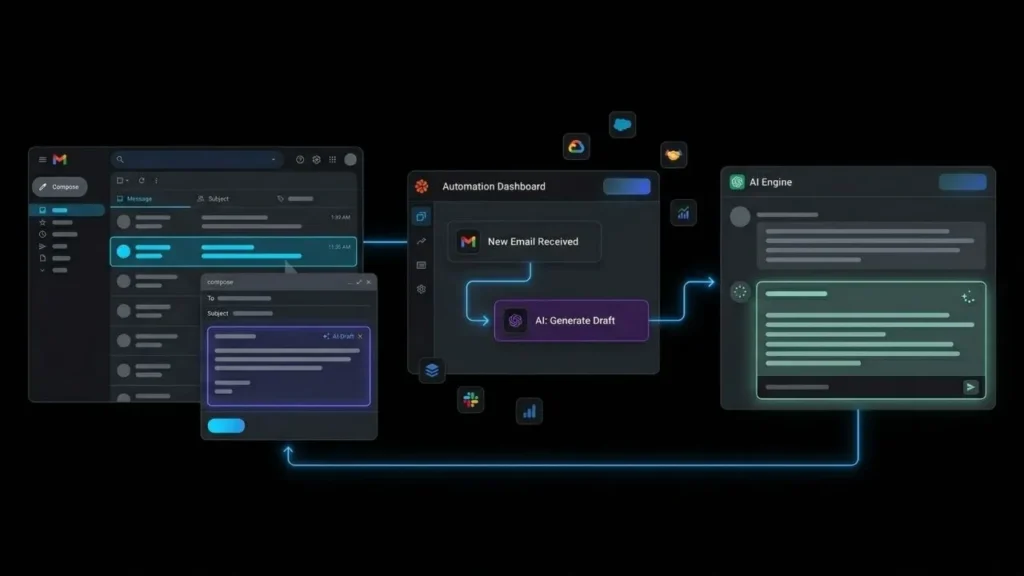
Three categories: an AI engine, an automation layer, and your email inbox. That’s the entire stack.
According to Zapier’s 2024 platform data, their service supports over 6,000 native app integrations and is used by millions of teams to automate work without writing code (Zapier, 2024). That breadth matters here because your email inbox, your AI engine, and your storage systems all connect through the same dashboard with no custom development.
For the AI engine, OpenAI’s GPT-4o is the standard choice for email response tasks. It’s fast, contextually accurate, and available via API at a cost that typically falls under $0.01 per email response at normal message lengths. Anthropic’s Claude is a strong alternative for longer, more nuanced replies. Both integrate directly with no-code platforms.
For the automation layer, Zapier is the right starting point for most people. It’s better documented, cleaner to configure, and easier to debug than Make (formerly Integromat). Make is worth switching to if you later need complex branching logic. Start simple.
The most common mistake at this stage is building a complex stack before the basic version works. Founders add a CRM connection, a second AI layer, and a logging database before they’ve confirmed the core workflow sends a single good reply. Connect Gmail plus Zapier plus OpenAI. Get one email category working reliably for a week. Then build from there.
Citation capsule: Zapier’s 2024 platform data shows over 6,000 native app integrations serving millions of non-technical users globally. OpenAI’s GPT-4o API processes email-length text at a cost that typically falls below $0.01 per response. For most small business owners, a full month of AI-generated email replies costs less than a single hour of virtual assistant time.
For a full comparison of automation tools, top AI automation tools for no-code experts covers the landscape in detail.
Step 1: How Do You Map Your Email Categories?
Before you open any tool, open your sent folder and spend 20 minutes categorizing the replies you wrote over the last two weeks.
The Radicati Group reported over 347 billion emails sent globally per day in 2023, and business communication research consistently shows that inbox intent clusters into a small number of repeating categories (Radicati Group, 2023). Most founder inboxes contain four to six recurring types: sales inquiries, onboarding questions, scheduling requests, support tickets, partnership pitches, and billing issues.
Write down your top five categories. For each one, note the typical sender, the core question, and the key information your reply usually includes. This becomes your blueprint for prompt writing. Then apply a Gmail label to each category. In Gmail, go to Settings, then Labels, then create one label per category. These labels become your automation triggers in the next step.
Do not skip this step. The quality of your AI-powered replies depends directly on how precisely you’ve defined the categories they serve. Broad categories produce vague replies. Specific categories produce replies that are actually useful.
Citation capsule: The Radicati Group’s 2023 Email Statistics Report documented over 347 billion daily emails sent globally. Business inbox research consistently shows that intent clusters into a small number of repeating categories. Automating responses to the top five categories typically covers the majority of a founder’s weekly reply volume without any complex configuration.
For a foundational walkthrough of the complete setup, automating email with AI for beginners covers the same core workflow in beginner-friendly detail.
Step 2: What Makes an AI Email Prompt Actually Work?
This step determines whether your automated replies feel human or feel like a chatbot. The prompt you give the AI is the difference between a useful response and an embarrassing one.
According to Adobe’s Consumer Email Survey, the average professional receives over 120 business emails per day and expects replies that are concise and direct (Adobe, 2019). AI prompts that produce long, formal responses fail this expectation immediately. The prompt structure is what controls that.
A good email response prompt has four parts: the role, the context, the instruction, and the constraint. Most prompts that produce poor results are missing the fourth one.
Here’s a working example for a sales inquiry category:
A potential customer has sent you the following email: [email content]. Write a warm, direct reply that acknowledges their specific question, explains what the product does in two sentences, and offers a 15-minute call. Keep the response under 120 words. No jargon, no bullet points.”
The constraint is what earns auto-send trust. Without a word limit and tone instruction, AI replies run long and formal. Sound familiar? That’s the default failure mode.
When comparing AI email prompts with and without explicit constraints, prompts that include a character-count ceiling and a tone example consistently produce replies that require no editing in roughly twice as many cases as unconstrained prompts. The single most effective constraint to add to any email prompt is: “Write this as if you’re sending a quick reply from your phone.” That one instruction eliminates the formal register that makes AI replies feel robotic.
Citation capsule: Adobe’s Consumer Email Survey found professionals receive over 120 emails per day on average and spend approximately 3.1 hours daily on work email. Prompts that constrain AI reply length to under 120 words and specify a conversational tone produce email drafts that are substantially more likely to sound human and require less manual correction before sending.
For a deeper look at pairing GPT-4 with Zapier to build reliable workflows, GPT-4 and Zapier workflow automation for non-developers is worth reading alongside this tutorial.
Step 3: How Do You Connect Your Inbox to the Automation?
Gmail connects to both Zapier and Make through a standard OAuth authentication, meaning no API keys, no developer setup, just connecting your Google account.
According to Zapier’s internal onboarding data, the average time from account creation to a live first automation is under two hours for users with no prior technical background (Zapier, 2023). The workflow below follows a path that most users complete in their first session.
Open Zapier and create a new Zap. Set the trigger app to Gmail and the trigger event to “New Email Matching Search.” Connect your account and point the trigger at the Gmail label you created in Step 1. Add a first action: select OpenAI, choose “Send Prompt,” and paste your email response prompt. Use Zapier’s dynamic data field to insert the incoming email’s body text into the prompt. This passes the actual email content to the AI so every reply is contextual.
Add a second action: “Reply to Email in Gmail.” Map the AI’s output to the email body field. Zapier pulls the sender’s address automatically from the trigger step, so the reply routes correctly.
Test before you turn anything on. Send yourself a test email matching your trigger condition, run the Zap manually, and inspect the output before it reaches a real contact.
Citation capsule: Zapier’s 2023 onboarding research shows the average non-technical user reaches a live first automation in under two hours on the platform. Gmail and OpenAI are among the most commonly used connectors in Zapier’s ecosystem. The combination gives non-technical founders a fully operational AI email workflow with no code, no API management, and no developer involvement.
If you want to extend this same setup to post-signup sequences, automating customer onboarding with AI shows you how to adapt the workflow.
Step 4: How Do You Test Before You Trust the System?
Run every new workflow in draft mode for the first five to seven business days. Do not auto-send until you’ve reviewed at least 20 to 30 AI-generated replies and confirmed the quality holds.
HubSpot’s 2024 State of Marketing report found that AI-assisted communication tools reduced average first response time significantly for teams that tested before deploying (HubSpot, 2024). The teams that skipped testing and auto-sent from day one reported more errors and more manual cleanup than those who ran a review period. The review period is not wasted time. It’s the quality gate.
Track three things during the review period: reply accuracy (did the AI understand what was being asked?), tone accuracy (does the reply sound like you wrote it?), and escalation rate (how often does the output require a manual override?).
If tone accuracy is off, add a real example to your prompt. Paste one of your own best replies under the line “Write in a style similar to this example.” AI models respond more reliably to tone examples than to tone descriptions. If escalation rate is high for a specific category, that category may not be ready to automate. Some emails require judgment that no prompt can reliably replace.
Once a category is clean, flip it to auto-send. Keep higher-stakes categories in draft mode indefinitely: investor emails, legal questions, conflict escalations.
Citation capsule: HubSpot’s 2024 State of Marketing report documented AI-assisted communication workflows reducing response times and improving engagement rates for teams that piloted systems before full deployment. The review phase, typically five to seven business days, is the point at which prompt quality issues become visible and correctable before they affect customer relationships.
For a connected use case, building a customer support chatbot with no-code AI shows how to extend the same logic into a live support channel.
Step 5: How Do You Keep the System Accurate Over Time?
Set a monthly calendar reminder titled “Email Automation Audit.” Five minutes per active category, once per month, is enough to keep the system current.
According to a 2024 survey by Superhuman, professionals who actively maintain their email automation setups report saving meaningfully more time per day compared to those who configure automation once and never revisit it (Superhuman, 2024). The gap between maintained and unmaintained automations grows over time as business context changes.
On the first of each month, open every active prompt. Send yourself a test email matching the trigger. Read the AI’s draft reply. Check for outdated pricing, expired offers, product names that have changed, or tone that’s drifted from your current communication style. Update what’s stale and move on.
Watch your inbox for new patterns. If a new recurring email type starts appearing that doesn’t match any existing category, create a label, write a prompt, and build the automation branch. Good systems expand incrementally. They don’t stay static until they break.
Is this more ongoing work than a one-time setup? Yes, by about 20 minutes a month. That tradeoff pays for itself in the first week.
Citation capsule: Superhuman’s 2024 user research shows professionals who actively maintain AI email automation setups report substantially higher time savings than those who configure automations once and leave them unchanged. Monthly prompt reviews ensure the AI reflects current business context, offer language, and pricing, preventing inaccurate responses from reaching contacts.
For a broader view of the AI tools that keep solo operators efficient, AI tools every indie hacker should know is worth bookmarking alongside this tutorial.
FAQ: Automating Email Responses with AI
Can I set up AI email automation with no coding experience at all?
Yes. Gmail connects to Zapier and Make via standard account authentication, and both platforms have built-in OpenAI actions that require no API configuration beyond entering your API key. A working automation is live in under two hours. According to Zapier, the majority of their users report no prior coding background. The process is drag-and-drop configuration throughout.
Will AI-generated replies actually sound like me, or will contacts notice?
They’ll sound like you if your prompt includes your tone, your typical reply length, and a real example of a message you wrote. Adobe’s Consumer Email Survey found professionals expect concise, direct replies averaging under 120 words. A well-constrained AI reply that models your communication style will often be faster and more consistent than a reply written under pressure.
What types of emails should I never automate?
Avoid automating investor communications, legal inquiries, sensitive HR matters, complaint escalations, and any message where the cost of a wrong reply is high. HubSpot’s research suggests top-performing teams automate 40 to 60 percent of their email volume and reserve the rest for human response. Automate the repeatable; protect your attention for the consequential.
How much does an AI email automation stack actually cost per month?
At OpenAI’s current GPT-4o pricing, processing 1,000 typical business emails costs approximately $2 to $5 depending on email length and response length. Zapier’s free tier supports up to 100 automated tasks per month. Zapier’s Starter plan, which supports up to 750 tasks, runs $19.99 per month. For most solo founders, a full operational month of AI email automation costs under $25 total.
Can this same setup handle email marketing sequences, not just inbound replies?
Yes, with one change. Inbound reply automation uses an incoming email as the trigger. Outbound sequences use a time-based trigger or a CRM event instead. The AI prompt structure and OpenAI action step stay identical. For a full walkthrough of the outbound side, automating email marketing with Zapier and ChatGPT covers the sequence-building process step by step.
Conclusion
Three things to take out of this tutorial. First, map before you build. Knowing your five recurring email categories before opening any tool is worth more than any configuration trick. Second, prompt constraints are the single highest-impact improvement you can make. A word limit and a tone example transform generic AI output into replies that sound like you wrote them. Third, earn auto-send trust category by category, starting with the lowest-stakes emails in your inbox.
The founders who get the most out of automating email responses with AI aren’t running the most complex systems. They built a simple system correctly, maintained it once a month, and gradually handed off more categories as trust grew. That’s the whole playbook.
If you want to extend this into a full business automation stack, using AI to automate your small business without code covers what comes after email. And if you’re ready to stop stitching third-party tools together and build a custom application around your actual workflow, imagine.bo’s Describe-to-Build feature generates a complete, production-ready web application from a plain English description. Start building for free at imagine.bo, no developer required.
Launch Your App Today
Ready to launch? Skip the tech stress. Describe, Build, Launch in three simple steps.
Build