Short answer: To build a Chrome extension using imagine.bo, sign in at imagine.bo, describe your extension idea in plain English, let the AI generate the full code (manifest, popup, background, content scripts, and any backend it needs), refine it through chat, export the files, load them into Chrome via chrome://extensions, and — when you’re ready — submit the .zip to the Chrome Web Store. If anything gets stuck, click “Hire a Human” and a real engineer finishes the module for you.

This guide walks you through the whole thing — from your first idea to a live extension on the Chrome Web Store — whether you’ve never written a line of code or you’re a senior dev looking to ship faster. No fluff. Every step is something you actually do.
What you’ll build in this guide
We’ll build a real, publishable Chrome extension as our example: a “Quick Notes” extension that lets a user save highlighted text from any webpage into a personal notes dashboard with search, tags, and export.
It’s a good starter project because it touches every part of a real extension:
- A popup UI (the little window that opens when you click the icon)
- A content script (runs on webpages to grab highlighted text)
- A background service worker (handles saving and syncing)
- A backend database (stores the notes)
- Authentication (so each user has their own notes)
Once you’ve built this, you’ll understand the pattern for building any extension with imagine.bo.
Before you start: what you need
Honestly, not much:
- A Chrome browser on Windows, macOS, or Linux
- An imagine.bo account — the Free plan (10 credits/month) is enough to ship your first extension
- A clear idea of what your extension should do — five minutes of planning beats an hour of prompting
- $5 one-time fee for Chrome Web Store developer registration (only if you want to publish publicly — you don’t need this to test locally)
You do not need Node.js, npm, a code editor, or any local setup. Everything happens in your browser.
Step 1: Plan your extension in 5 minutes
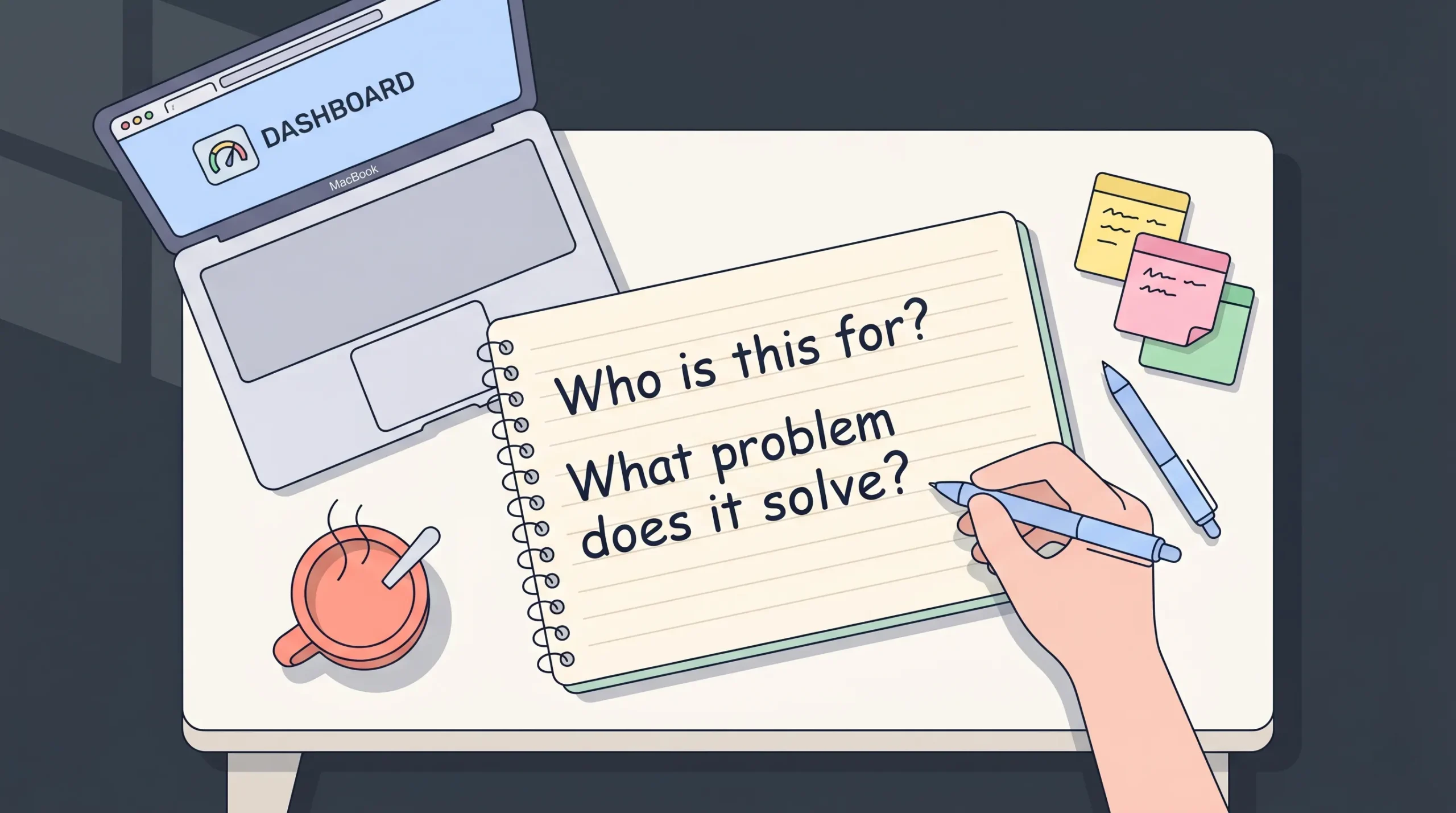
The biggest mistake first-time builders make is opening the prompt box with a fuzzy idea. The AI gives you what you describe — so spend five minutes writing down clear answers to these five questions:
- Who is this extension for? (e.g., “researchers saving quotes from articles”)
- What single problem does it solve? (e.g., “I lose track of useful quotes across 50+ tabs”)
- What are the 3–5 core features? (e.g., save highlighted text, add tags, search notes, export as Markdown)
- Are there user roles? (e.g., just one user, or admin + members?)
- Does it need a backend? (e.g., do notes need to sync across devices, or live only in the browser?)
For our Quick Notes example, the answers look like this:
A Chrome extension for researchers and students. It solves the problem of losing useful quotes across many tabs. Users highlight text on any webpage, click a save button in a popup, and the text is saved to a personal dashboard with tags, search, and Markdown export. Each user has their own account. Notes sync to the cloud so they’re available across devices.
That’s it. That one paragraph is enough to generate the first version.
Step 2: Sign in to imagine.bo and start a new project
Go to imagine.bo and sign in (or sign up — it takes under a minute).
On the dashboard, you’ll see the prompt box at the top. This is where your idea becomes real software. You’ll also see your credit balance in the sidebar — Free plans start with 10 credits, Lite with 30, Pro with 150. Credits are what the AI spends when it generates or modifies parts of your project.
One detail that matters for Chrome extensions: imagine.bo builds your project as a full-stack web application. That’s a feature, not a bug. Your extension gets a proper backend (database, API, auth) from day one — so features like cross-device sync, user accounts, and analytics are built in instead of bolted on.
Step 3: Write your first prompt (the right way)
Here’s the exact prompt structure that works best with imagine.bo — four elements every time:
- Persona — who it’s for
- Problem — what pain it removes
- Features — specific things it must do
- Rules — edge behaviors, permissions, constraints
For our Quick Notes extension, a strong first prompt looks like this:
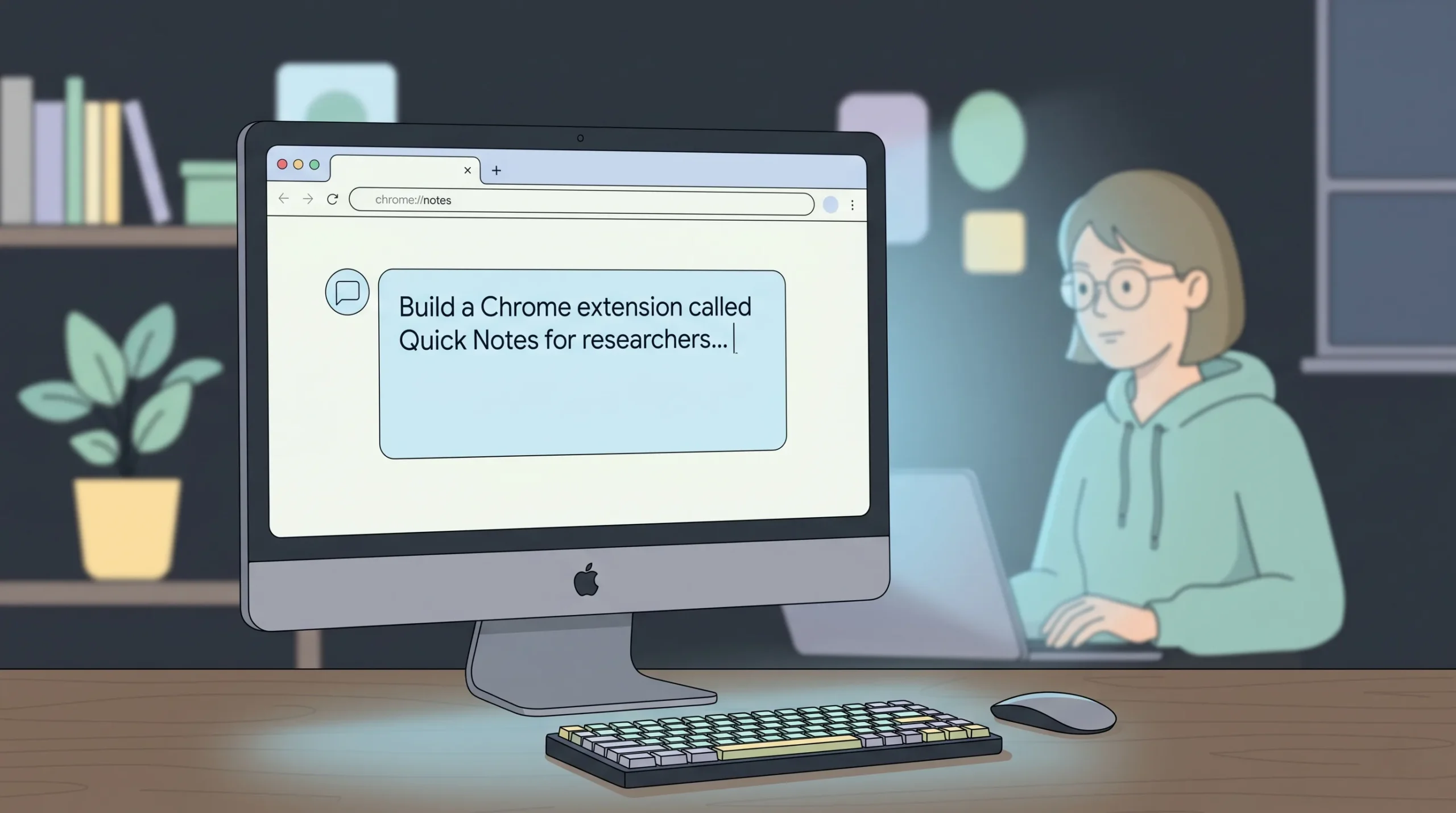
“Build a Chrome extension called Quick Notes for researchers and students. Users highlight any text on any webpage, click the extension icon, and save the highlight into their personal notes dashboard. Features: (1) a popup UI with a text area showing the currently highlighted text and a ‘Save Note’ button, (2) tags support — users can add one or more comma-separated tags to each note, (3) a separate notes dashboard page with search, tag filters, and Markdown export, (4) user accounts with email signup and login so notes are private and sync across devices, (5) a content script that detects highlighted text on any page. Rules: only logged-in users can save notes. Guests see a ‘Please sign in’ prompt. Notes must persist to the backend database, not only localStorage. Follow Chrome Manifest V3 standards.”
Paste that into the prompt box and click Start Building My Idea. The AI will take a few minutes to generate the full project.
Why this prompt works
- It names a persona, not just “users”
- It lists five specific features — not a vague “like Evernote”
- It spells out the rule about logged-in vs. guest behavior
- It flags Manifest V3 explicitly so the AI uses the current Chrome standard
- It says “backend database” so imagine.bo provisions proper storage instead of browser-only
localStorage
Step 4: Review what the AI generated
When the generation finishes, imagine.bo gives you three things at once:
- The Chrome extension files —
manifest.json, popup HTML/CSS/JS, background service worker, content scripts, icons - The notes dashboard web app — a responsive UI where users search, filter, and export
- The backend — database schema (users, notes, tags), API endpoints, and secure authentication with role-based access control
Before you touch anything, do a quick sanity check:
- Are all the screens you expected there? Popup, login, dashboard, settings?
- Does the database schema match your data? Check that “notes” has fields like
id,user_id,source_url,content,tags,created_at. - Does the manifest file look right? Manifest V3, the permissions you actually need (usually
activeTab,storage, and host permissions only if the extension reads pages across domains). - Did the auth flow get generated? Login, signup, email verification if you asked for it.
If something’s missing or wrong, don’t start over. Just keep chatting — that’s how imagine.bo works.
Step 5: Refine through conversation (this is where the magic happens)
Most of your time with imagine.bo is spent iterating, not prompting from scratch. You talk to the AI the same way you’d talk to a teammate.
Here are the kinds of follow-ups you’ll use constantly:
UI changes
“Move the Save Note button to the top of the popup and make it a full-width primary button. The tag input should sit below the text area.”
Logic changes
“When a user saves a note, also store the page title and the full URL of the source. Display both on the dashboard below each note.”
Permission and security
“The extension is requesting ‘tabs’ permission but doesn’t need it. Remove ‘tabs’ from the manifest and only use ‘activeTab’ and ‘storage’.”
Design polish
“Use a minimalist light theme with indigo as the accent color. The popup should be 380px wide. Use system fonts.”
The golden rule: one change per message, or a few tightly related changes. Stuffing five unrelated fixes into one prompt gets messier results than sending them one by one.
Step 6: Test your extension locally in Chrome
Once the extension looks right inside imagine.bo’s preview, test it for real in your own Chrome browser.
Export the extension files
In imagine.bo, export your project code. You’ll get a folder with all the extension files: manifest.json, the popup/ folder, background service worker, content scripts, and an icons/ folder.
Load the unpacked extension into Chrome
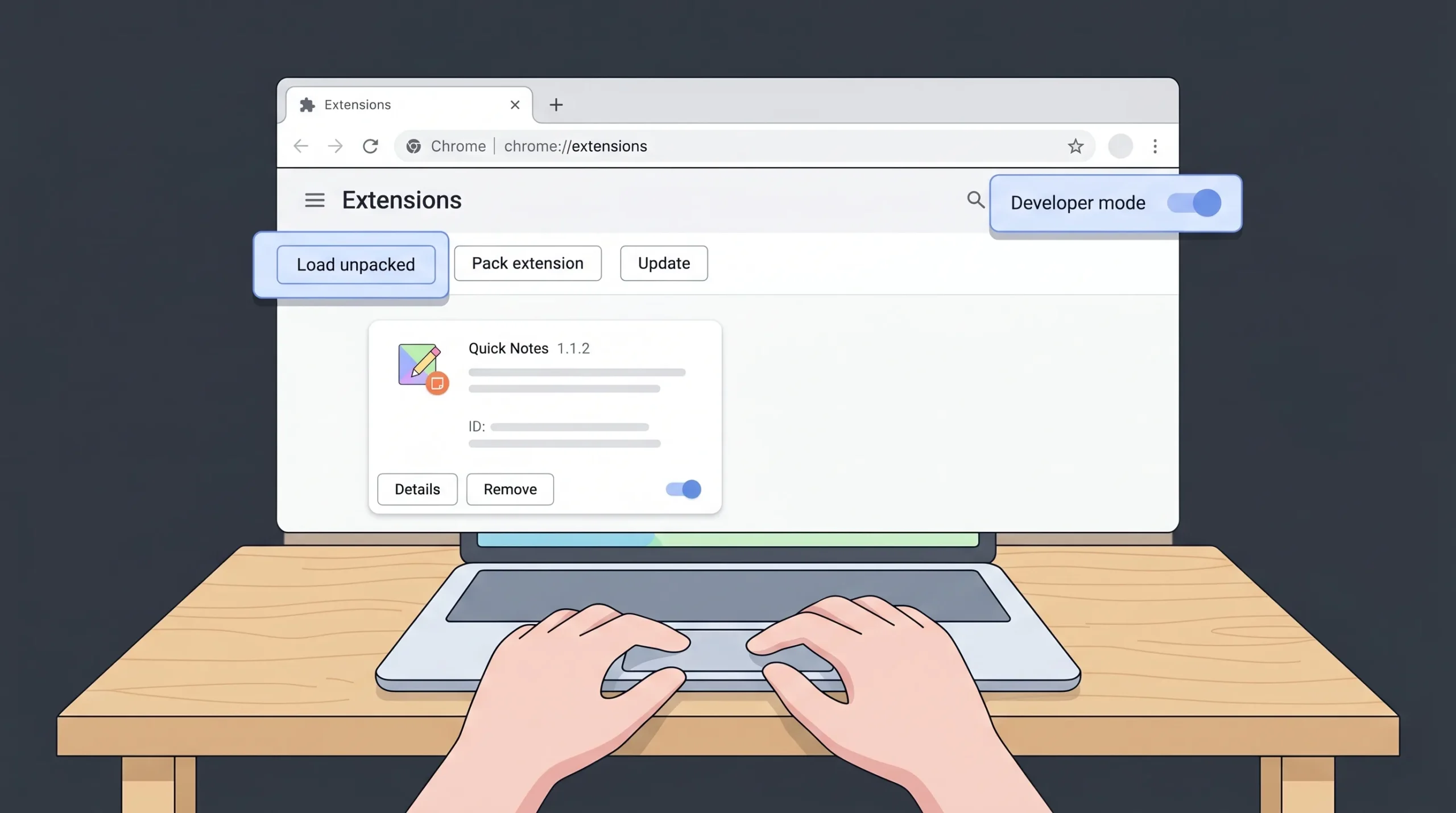
- Open Chrome and go to
chrome://extensions - Toggle Developer mode ON (top-right corner)
- Click Load unpacked
- Select the folder you exported from imagine.bo
- Your extension now shows up in the list, and its icon appears in the Chrome toolbar
What to actually test
- Happy path: sign up, log in, highlight text on three different websites, save a note, check it appears in the dashboard
- Edge cases: what happens with no highlighted text? Empty tag field? Very long highlights? Images or non-text selections?
- Permission check: does the extension ask for only what it actually needs?
- Role check: log out — do guests correctly see the “please sign in” prompt?
- Sync check: sign in on a second browser profile — do your notes appear?
Every bug you find, describe in plain English back to imagine.bo:
“The popup shows a blank text area when no text is highlighted. It should show a friendly message: ‘Highlight text on the page to save it as a note.'”
The AI updates the code; you reload the extension at chrome://extensions (there’s a little refresh icon) and test again.
Step 7: Use “Hire a Human” when the AI hits a wall
This is imagine.bo’s unique advantage — and it matters more for Chrome extensions than almost any other type of project, because extension review and niche Chrome APIs are where AI tools typically break down.
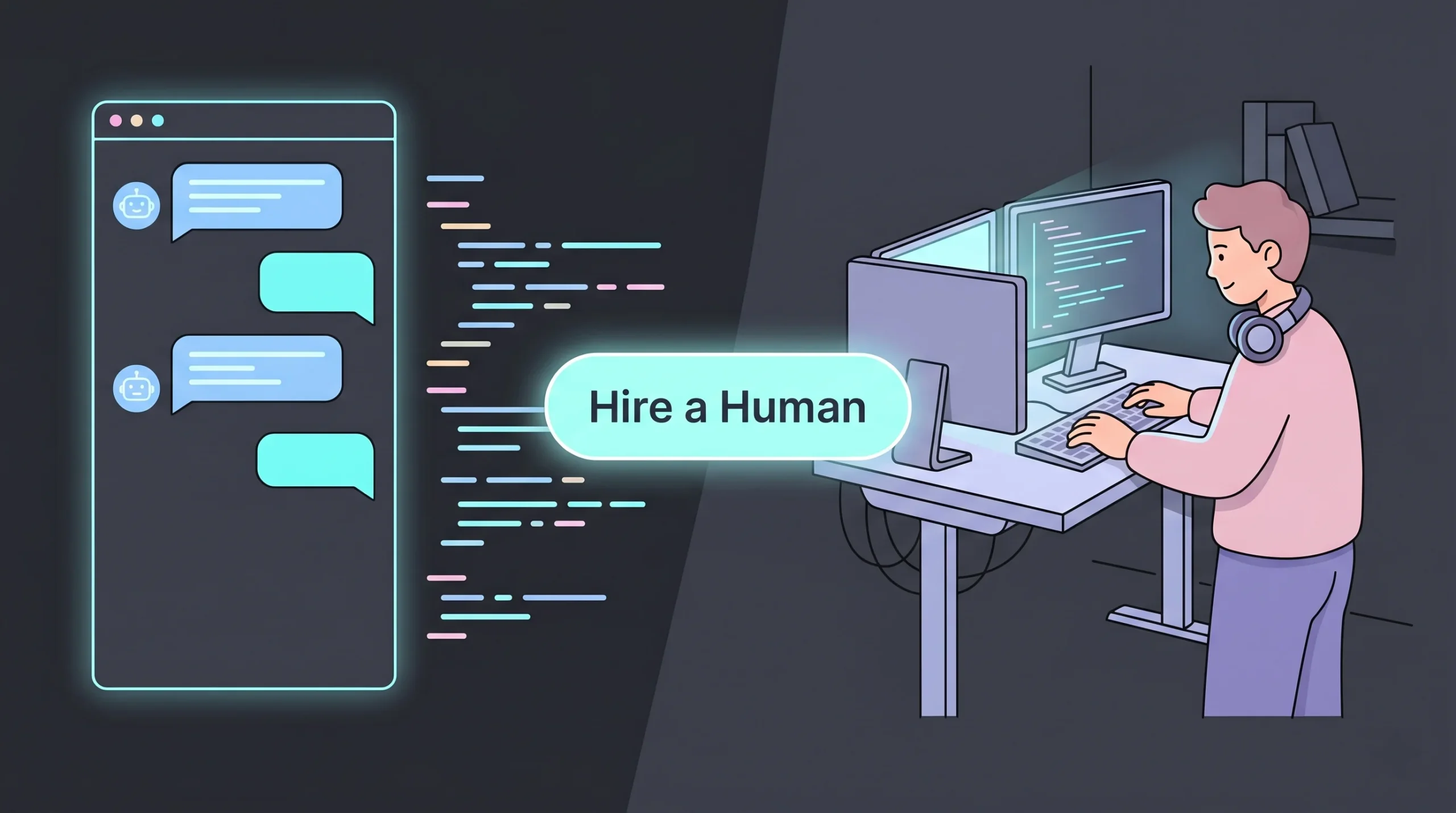
Click “Hire a Human” from the top-right of the generating screen when you run into any of these:
- Complex OAuth flows (e.g., Google/Gmail/GitHub scopes that need exact permission config)
- Payment integrations inside the popup (Stripe, Razorpay, localized gateways)
- Custom algorithms — say, a smart deduplication of similar notes, or semantic search
- Content scripts that need to survive single-page-app re-renders (LinkedIn, Twitter, Notion — each has its own rendering quirks)
- Chrome Web Store review failures that you can’t debug from the reviewer’s message alone
- Performance tuning if your extension slows Chrome down across many tabs
You can hire a vetted engineer per page at $25, or assign the whole project for a fully managed build (the $499 Done-For-You plan is designed exactly for this). You stay in the loop the whole time — the engineer pushes fixes directly into your project.
When submitting a Hire-a-Human request, be specific:
Goal: Integrate Stripe Checkout for a Pro tier inside the Quick Notes extension. Currently: the Upgrade button in the popup is non-functional. Expected: clicking Upgrade opens a Stripe Checkout session, and on successful payment, the user’s account is flagged as Pro in the backend and unlocks unlimited notes. Reference: our backend is already set up with a ‘users’ table that has a ‘plan’ column.
Clear goal + clear current state + clear expected outcome = faster delivery.
Step 8: Add the polish that separates demos from products
Before you publish, prompt imagine.bo to add the small-but-critical details that make Chrome reviewers (and users) happy:
Icons
Chrome requires three icon sizes: 16×16, 48×48, and 128×128 pixels, in PNG format. Prompt imagine.bo to generate or place these, or upload your own (the Kromio Max plan and several design tools can generate icon sets; imagine.bo will wire them into the manifest).
Privacy policy
If your extension collects any user data (and ours does — we have accounts), Chrome requires a public privacy policy URL. imagine.bo can generate a standard privacy policy page as part of your web app. Host it on your deployed site and paste the URL into your Chrome Web Store listing.
Store listing assets
You’ll need screenshots (1280×800 or 640×400), a promotional image (440×280), a clear description, and a short summary. Prompt imagine.bo to generate a Store Listing one-pager with all the copy you need — then take screenshots of your live extension.
SEO-ready dashboard
Because imagine.bo apps have SEO-ready architecture by default, your public-facing pages (landing page, privacy policy, terms) will rank on Google from day one — which matters if you want organic installs from beyond the Chrome Web Store.
Step 9: Deploy the backend
Your extension talks to a backend — that’s how notes sync across devices. Before you publish the extension, that backend needs to be live.
In imagine.bo, click Deploy. One click handles:
- Frontend to Vercel — the notes dashboard and any public pages get global edge caching and fast loads worldwide
- Backend to Railway — your database and APIs auto-scale from 10 users to 1 million
- SSL/HTTPS — automatic on all deployments (Chrome will reject any extension that talks to an unencrypted backend)
- RBAC — role-based access control is enforced at the data layer, not just the UI
Once deployed, your extension’s API calls will hit the live production URL. Copy that URL into your extension’s background script (imagine.bo handles this automatically when you deploy).
Step 10: Publish to the Chrome Web Store
Now the fun part — getting your extension in front of real users.
1. Register as a Chrome Web Store developer
Go to the Chrome Web Store Developer Dashboard, agree to the developer agreement, and pay the one-time $5 registration fee. That $5 is a lifetime fee covering up to 20 extensions on your account — cheaper than a coffee, essentially.
2. Zip your extension folder
Export the extension files from imagine.bo and zip the folder. Important: zip the contents, not the parent folder — manifest.json must be at the root of the zip.
3. Upload and fill the store listing
In the developer dashboard, click New Item and upload your .zip. Then fill in:
- Title, short description, detailed description
- Category (Productivity is right for Quick Notes)
- Language
- Screenshots and promo tile
- Privacy policy URL (from your deployed site)
- Permission justifications — for each permission in your manifest, explain why you need it
4. Submit for review
Click Submit for review. Most extensions are reviewed within a few days. Extensions with content scripts that access all pages can take longer.
If Chrome rejects your submission, read the rejection reason carefully, paste it into imagine.bo, and let the AI or a Hire-a-Human engineer fix the issue. Common rejections are missing privacy policies, over-broad permissions, and unclear descriptions — all quick fixes.
Step 11: Iterate post-launch (the real work starts here)
Shipping is the start, not the finish. Once real users install your extension, three things happen:
- You find bugs you never saw in testing
- Users ask for features you didn’t plan
- You see which features get used and which don’t
imagine.bo’s built-in analytics show you user behavior, retention, and feature usage on the dashboard. Use that data to prompt the next iteration:
“90% of users who save a note never add a tag. Move the tag input from a required field to an optional one, and add three suggested tags based on the source domain (e.g., github.com → ‘code’, medium.com → ‘article’).”
Then deploy the updated extension (bump the version in manifest.json), re-zip, and upload the new version to the Chrome Web Store. Updates roll out to all existing users automatically after review.
Common mistakes (and how to avoid them)

Mistake 1: Overloaded first prompt
Asking for 15 features in one go produces a shallow result. Start with an MVP of 3–5 features, ship it, then prompt for v2 additions.
Mistake 2: Vague reference prompts
“Build a Chrome extension like Grammarly” gives you a generic interpretation. “Build a Chrome extension that underlines passive voice in orange on any webpage’s contenteditable fields” gives you exactly what you want.
Mistake 3: Skipping user roles
If you don’t specify access rules, the AI guesses — and usually picks the wrong default. Always say who can do what: “Only logged-in users can save. Guests can only view the public landing page.”
Mistake 4: Requesting too many permissions
Chrome reviewers reject extensions that ask for permissions they don’t clearly need. Prompt imagine.bo to use the narrowest possible permission — activeTab instead of tabs, storage instead of nothing-for-free, and host permissions only for domains you actually need.
Mistake 5: Not testing on real sites
Your extension will behave differently on Gmail, LinkedIn, GitHub, and a plain static blog. Test on at least five different sites before you publish.
Mistake 6: Forgetting the privacy policy
If your extension collects any personal data (even just email for login), Chrome requires a privacy policy URL. Generate one with imagine.bo and host it on your deployed site.
Prompts you can steal (save these)
Here are battle-tested prompt templates for common Chrome extension types you can paste directly into imagine.bo and tweak:
Productivity / tab manager
“Build a Chrome extension called [Name] for people who juggle 50+ open tabs. It groups tabs by domain, suggests duplicates to close, and lets users save a tab group as a named session they can restore later. Popup shows current tab count and a ‘Clean up’ button. Manifest V3. Permissions: tabs, storage. No backend — use chrome.storage for session data.”
Content summarizer
“Build a Chrome extension called [Name] that adds a sidebar on any article page. The sidebar uses Chrome’s built-in Summarizer API (Gemini Nano) to produce a 3-bullet summary of the current page. Users can copy the summary, regenerate it, or change the length (short/medium/long). Manifest V3. Permissions: activeTab, scripting. Fallback: if Summarizer API is unavailable, show a message asking the user to upgrade Chrome.”
Developer utility
“Build a Chrome extension called [Name] for frontend developers. When the user clicks the extension icon on any page, the popup shows: (1) the page’s color palette extracted from CSS, (2) all font families used, (3) the HTTP response headers, (4) a ‘copy all’ button. Manifest V3. Permissions: activeTab, scripting. No backend required.”
Shopping / price tracker
“Build a Chrome extension called [Name] for online shoppers. On any product page (Amazon, Flipkart, eBay), the extension detects the price and lets users click ‘Track Price’. Tracked prices are saved to the user’s account. Users get a daily email if the price drops more than 5%. Manifest V3. Permissions: activeTab, storage. Requires backend with user accounts and email sending. Follow GDPR for email notifications.”
FAQ
Do I need to know how to code to build a Chrome extension with imagine.bo?
No. imagine.bo is built for non-technical founders. You describe what you want in plain English, and the AI handles the manifest, scripts, permissions, and backend. If you hit a wall, the “Hire a Human” feature puts a real engineer on the task.
How long does it take to build a Chrome extension with imagine.bo?
A first working version — the kind you can load into your own Chrome and use — takes about 30 minutes. A polished, Chrome Web Store–ready extension typically takes a few hours of iteration. Compare that to 3–6 months of traditional development.
What does it cost to publish a Chrome extension?
Chrome charges a one-time $5 developer registration fee, which covers up to 20 extensions on your account for life. On imagine.bo, you can start on the Free plan ($0, 10 credits/month). Most solo builders ship their first extension on the Pro plan ($25/month, 150 credits).
Can I export my code and leave the platform?
Yes. imagine.bo produces clean, modern, exportable code that follows standards. You own your data and your code — you can audit it, self-host it, or hand it off to an internal team at any time.
Does the extension work offline?
It depends on what it does. If it only processes the current page (like a tab manager), it can work fully offline. If it syncs notes or calls an API (like our Quick Notes example), it needs a connection — but imagine.bo’s generated backends include graceful offline handling by default.
Can I build extensions that use Chrome’s built-in AI APIs?
Yes. imagine.bo produces clean, modern, exportable code that follows standards. You own your data and your code — you can audit it, self-host it, or hand it off to an internal team at any time.
Does the extension work offline?
It depends on what it does. If it only processes the current page (like a tab manager), it can work fully offline. If it syncs notes or calls an API (like our Quick Notes example), it needs a connection — but imagine.bo’s generated backends include graceful offline handling by default.
Can I build extensions that use Chrome’s built-in AI APIs?
Yes. imagine.bo can generate extensions that call Chrome’s Prompt, Summarizer, Writer, Rewriter, and Translator APIs (powered by on-device Gemini Nano). These APIs work on Windows 10/11, macOS 13+, Linux, and ChromeOS on Chromebook Plus devices, and require around 22 GB of free disk space for the on-device model.
What if Chrome rejects my submission?
Read the rejection reason, paste it into imagine.bo, and ask the AI to fix it. If it’s a reviewer-flagged issue that needs careful handling (unusual permissions, content policy concerns, or privacy policy gaps), click “Hire a Human” and an engineer will resolve it.
Can I update my extension after publishing?
Yes. Bump the version number in manifest.json (e.g., from 1.0.0 to 1.1.0), export the updated files, zip them, and upload the new version to the Chrome Web Store. Google reviews the update and rolls it out to all existing users automatically.
Does my extension need a backend?
Only if it needs to persist data beyond one browser or one device. Simple utilities (tab managers, color pickers, highlighters) don’t. Anything with user accounts, cross-device sync, or shared data does — and that’s where imagine.bo’s full-stack generation shines.
How do I handle user authentication in a Chrome extension?
Prompt imagine.bo to include email signup/login and it will generate the full auth flow — signup form, login form, session management, secure token storage, and backend endpoints. Role-based access control (RBAC) is included by default.
From idea to Chrome Web Store: your 60-minute checklist
Here’s the whole flow in one scannable list:
- ✅ Write your 5-question plan (5 min)
- ✅ Sign in to imagine.bo and paste your structured prompt (5 min)
- ✅ Review the AI-generated blueprint (5 min)
- ✅ Refine through 3–5 follow-up prompts (15 min)
- ✅ Export the extension and load it at
chrome://extensions(2 min) - ✅ Test happy path + edge cases on real websites (10 min)
- ✅ Fix issues via chat, or click Hire a Human if stuck (variable)
- ✅ Generate icons, privacy policy, and store copy (5 min)
- ✅ Click Deploy — frontend to Vercel, backend to Railway (2 min)
- ✅ Register as a Chrome Web Store developer, pay $5 (3 min)
- ✅ Zip your extension, upload, fill the store listing, submit (10 min)
- ✅ Ship, iterate, and track analytics on imagine.bo (ongoing)
Ready to build your first Chrome extension?
Every week, founders use imagine.bo to ship Chrome extensions they thought would take months. The formula is the same every time: a clear prompt, conversational refinement, a one-click deploy, and a human engineer on standby for the 20% the AI can’t crack.
Your extension is the same. You already have the idea — the rest is one prompt away.
Start free on imagine.bo, describe your idea in plain English, and ship your first Chrome extension this week.