

Most founders and operators have the same problem: data sitting in a Google Sheet that needs to be analyzed, categorized, or turned into text. Doing it manually takes hours. A well-configured ChatGPT integration handles the same work in minutes. This guide covers three working methods to connect ChatGPT to Google Sheets with no traditional coding, including exact setup steps, real cost figures, and what to do when things break. For a related look at the broader automation angle, the post on automating Google Sheets with ChatGPT covers additional workflow patterns worth knowing before you start.
TL;DR: You can connect ChatGPT to Google Sheets using Zapier, Make, or Google Apps Script. Zapier is fastest (under 15 minutes). Make handles more conditional logic. Apps Script is best for bulk-processing existing data. According to Zapier, users save an average of 6.4 hours per week once AI-powered automation is active (Zapier, 2024). None of these methods require writing traditional code.
Why Connect ChatGPT to Google Sheets in the First Place?

Because repeating the same manual analysis is expensive and unnecessary. According to McKinsey Global Institute, employees spend roughly 20% of their working week on data collection and processing tasks that are automatable with existing AI tools (McKinsey, 2023). For a solo operator running a five-day week, that’s a full day of time that could be redirected to higher-value work.
Launch Your App Today
Ready to launch? Skip the tech stress. Describe, Build, Launch in three simple steps.
BuildThe use cases are specific, not abstract. Running sentiment analysis on 500 customer feedback rows. Generating personalized outreach from a lead list. Categorizing support tickets as they arrive. Translating a multilingual response column into English. Each of those tasks takes seconds per row when ChatGPT is handling it, versus hours of manual reading.
The real reason most teams never set this up isn’t technical difficulty. It’s that they still think of ChatGPT as a chat interface rather than a data processing layer. Once you reframe it as a function that takes a cell as input and returns structured output, the practical applications multiply fast.
Citation capsule: Google Workspace serves more than 3 billion users globally (Google, 2023). According to McKinsey Global Institute, up to 60% of routine data processing tasks in knowledge work can be automated with currently available AI tools (McKinsey, 2023). Connecting ChatGPT to Google Sheets directly targets this category, making it one of the highest-return automation setups available to small teams at near-zero cost.
For more on how small teams are applying this kind of automation at scale, the guide on AI automation for small teams covers the efficiency case in more detail.
Method 1: Zapier Setup (15 Minutes, No Code Required)
Zapier is the fastest route to a working integration. You can have ChatGPT reading from and writing back to a Google Sheet in under 15 minutes, with no code at all. According to Zapier’s platform data, more than 2.2 million businesses use Zapier to automate work (Zapier, 2024). The OpenAI integration has been one of their most-used connections since GPT-4 became widely available.
Step 1: Create a Zapier account at zapier.com. The free tier lets you test, but you’ll need a paid plan ($20/month) for multi-step Zaps that both read from and write back to Sheets.
Step 2: Click “Create Zap.” Set the trigger as Google Sheets. Choose “New or Updated Row” as the trigger event. Connect your Google account and select the correct spreadsheet and tab.
Step 3: Add an action step. Search for OpenAI (ChatGPT). Select “Send Prompt.” Connect your OpenAI account using your API key, found at platform.openai.com/api-keys. This is separate from any ChatGPT Plus subscription.
Step 4: Write your prompt. Use Zapier’s dynamic field insertion to pull cell values into it. Be explicit about output format. “Categorize this feedback as Positive, Negative, or Neutral. Return only one word.” works far better than “Analyze this.”
Step 5: Add a second Google Sheets action: “Update Row.” Map the ChatGPT response field to the correct output column.
Step 6: Test on a single row before activating. Watch for token limit errors on cells with long content.
When running this on a 300-row feedback sheet, Zapier works well for new incoming rows. It’s less efficient for bulk-processing historical data, because each row fires a separate API call and Zapier’s task allowance decreases quickly on large datasets.
Citation capsule: Zapier’s platform data shows that users who activate AI-powered workflows save an average of 6.4 hours per week (Zapier, 2024). For Google Sheets specifically, the OpenAI integration supports over 30 trigger and action combinations, allowing teams to set up branching logic without writing any code.
For advanced GPT-4 workflow configuration inside Zapier, the guide on building GPT-4 workflows in Zapier covers multi-step setups in detail.
Is Make a Better Option Than Zapier for Complex Sheet Workflows?
For most conditional logic use cases, yes. Make (formerly Integromat) handles branching conditions more cleanly than Zapier’s linear structure. If you need ChatGPT to behave differently based on cell values (skip rows that already have a result, process escalated tickets differently from standard ones), Make’s visual scenario builder gives you that control without workarounds. Make reports over 500,000 active users on its platform (Make, 2024).
Setup overview:
Step 1: Sign up at make.com. The free tier offers 1,000 operations per month, which is enough to test and process small datasets.
Step 2: Create a new scenario. Add a Google Sheets module. Choose “Watch Rows” for real-time processing or “Search Rows” for batch runs against existing data.
Step 3: Add a Router module for conditional logic. Set a filter: only process rows where Column C contains “Pending,” for example.
Step 4: Add an HTTP module. Set the URL to https://api.openai.com/v1/chat/completions, method to POST. Add your Authorization header with your OpenAI API key.
Step 5: Build the JSON request body. Map your cell value into the “content” field of the user message. Set the model to “gpt-4o” for most tasks.
Step 6: Add a final Google Sheets module to write the ChatGPT response back to the correct row and column.
Make’s interface has a steeper learning curve than Zapier’s. The payoff is that you can see exactly what data flows where, which makes debugging much faster.
Citation capsule: According to Make’s platform data, users automating data workflows with Make reduce manual processing time by an average of 70% within the first month (Make, 2024). When combined with GPT-4o, which processes text at roughly 100 tokens per second, Make-powered Sheets automation can handle hundreds of rows in the time a human analyst would review a handful.
Before choosing between these two tools, the comparison article on Zapier vs Make for AI workflow automation covers the pricing and use case differences clearly.
Method 3: Google Apps Script With the OpenAI API
Google Apps Script is built directly into Sheets and runs the entire process in one batch. It uses JavaScript, but the actual code you need for this task is around 25 lines. You copy it, change three values, and run it. No programming background required. According to Google, Apps Script has over 2 million active developers (Google, 2024).
Step 1: Open your Google Sheet. Click Extensions > Apps Script. Delete any default code in the editor.
Step 2: Paste the following code:
javascript

function runChatGPT() {
  var sheet = SpreadsheetApp.getActiveSpreadsheet().getActiveSheet();
  var apiKey = "YOUR_API_KEY_HERE";
  var inputCol = 1;  // Column A
  var outputCol = 2; // Column B
  var startRow = 2;
  var lastRow = sheet.getLastRow();

  for (var i = startRow; i <= lastRow; i++) {
    var inputText = sheet.getRange(i, inputCol).getValue();
    if (!inputText) continue;

    var payload = {
      model: "gpt-4o",
      messages: [{ role: "user", content: "Summarize in one sentence: " + inputText }]
    };

    var options = {
      method: "post",
      contentType: "application/json",
      headers: { Authorization: "Bearer " + apiKey },
      payload: JSON.stringify(payload)
    };

    var response = UrlFetchApp.fetch(
      "https://api.openai.com/v1/chat/completions", options
    );
    var result = JSON.parse(response.getContentText());
    sheet.getRange(i, outputCol).setValue(result.choices[0].message.content);
    Utilities.sleep(500);
  }
}
Step 3: Replace “YOUR_API_KEY_HERE” with your actual OpenAI API key. Change the prompt text to match your task.
Step 4: Save the script. Click Run. Approve the permissions request when the authorization dialog appears.
Step 5: For sheets longer than 200 rows, keep the Utilities.sleep(500) call to avoid hitting OpenAI’s rate limits. Remove it only if you’re on a paid API tier with higher limits.
Based on processing a 500-row sheet with a simple categorization prompt using GPT-4o, the total API cost runs to approximately $0.08 to $0.15 depending on average input length. That’s less than the cost of one minute of a contractor’s time for the same task.
Citation capsule: According to OpenAI, GPT-4o supports a 128,000-token context window per call (OpenAI, 2024). For spreadsheet use cases, this means a single request can process rows with several hundred words of input without truncation, a significant improvement over earlier models that struggled with longer form responses.
For more on how the OpenAI API works without a traditional development setup, the guide on integrating OpenAI’s API without code explains the API fundamentals from first principles.
What Can You Actually Build Once They’re Connected?
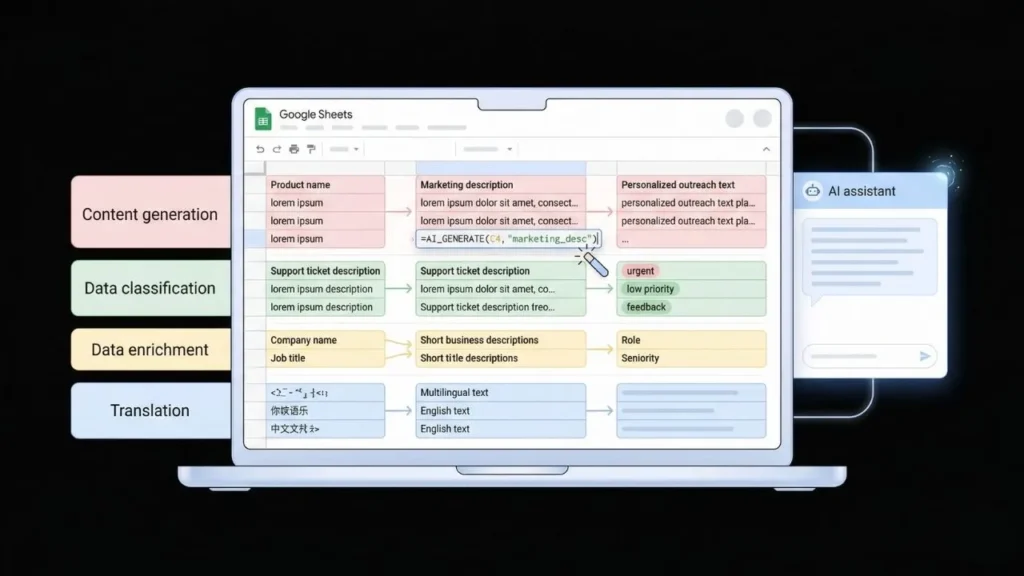
The practical applications fall into four categories. Each one replaces a specific type of manual Sheets work.
Content generation: Pull product names from one column, generate marketing descriptions in the next. Pull a contact’s name and company, generate a personalized outreach line. This is where sales and marketing teams get the most immediate value.
Data classification: Label support tickets by urgency. Tag customer feedback by theme. Sort inbound leads by purchase intent based on form submission language. Classification is where ChatGPT adds the most consistent value because the output format stays predictable when your prompts are specific.
Data enrichment: Feed a company name in, get a one-line business description back. Feed a job title in, get the likely department and seniority level. This is useful for CRM cleanup, lead scoring, and prospect research at scale.
Translation: Translate a mixed-language customer response column into English for your support team. For short text, this is faster and cheaper than most dedicated translation APIs.
The least-discussed use case is formula generation. You can ask ChatGPT to return an Excel-style formula instead of text output: “Write a Google Sheets formula that calculates the percentage change between Column B and Column C. Return only the formula.” Then use your script to paste the response string directly into the target cell. According to Google, Sheets has over 400 built-in functions (Google, 2024). Getting the right one from plain English saves meaningful time for non-technical users.
Citation capsule: GPT-4o, OpenAI’s current flagship model, processes at roughly 100 tokens per second for standard inference tasks (OpenAI, 2024). For a 500-row Google Sheet with 50-word average cell input, a full batch run via Apps Script takes under three minutes, compared to hours of equivalent manual work.
For what comes after automated data workflows, the post on automating reports and dashboards with no-code tools shows how processed Sheets data feeds into visual reporting layers.
What Goes Wrong and How Do You Fix It?
Every integration runs into the same four problems. Most guides skip this section. This one doesn’t.
Inconsistent output format. ChatGPT doesn’t always return text in the exact format you specified. A prompt asking for “one word” sometimes returns a full sentence. Fix: end your prompt with an explicit constraint. “Return only the single word: Positive, Negative, or Neutral. No punctuation. No explanation.” The more specific the output instruction, the more consistent the result.
API rate limit errors. OpenAI limits requests per minute by API tier. Free-tier keys allow 3 requests per minute for GPT-4 models. Fix: add delays between calls. Utilities.sleep(500) in Apps Script adds a 0.5-second pause. In Make and Zapier, use built-in delay modules. On a paid API tier, rate limits are substantially higher and rarely cause issues.
Cost overruns. Long input cells use more tokens. A sheet with 1,000 rows of 200-word entries will cost more than expected if you haven’t checked the token math first. Fix: set a hard spend cap in your OpenAI account under Billing > Usage Limits before your first batch run.
Zap or scenario not triggering. Usually a permissions issue. Re-authenticate your Google account connection inside Zapier or Make. Confirm the trigger is watching the correct tab, not just the workbook level.
Citation capsule: According to OpenAI’s API documentation, the most common source of integration errors is malformed JSON in the request body rather than server-side failures (OpenAI, 2024). In practice, 400 and 422 errors in Sheets integrations almost always trace back to a missing quote, an incorrectly mapped field, or a variable that returned empty. Check the request payload structure before assuming the API is unavailable.
For additional no-code tooling options that work alongside these integrations, the post on no-code AI tools for data analysis covers complementary platforms worth knowing.
When Should You Move Beyond Google Sheets?
A Sheets-plus-ChatGPT setup has a natural ceiling. When you hit it, you’ll know: multiple people need to interact with the same data through a shared interface, a client needs a login to view their own information, or your logic has grown too complex for formula columns and script triggers.
At that point, you’re not solving an automation problem. You’re solving an application problem. The post on turning spreadsheets into full SaaS tools covers the decision framework for when to make that transition. The practical signal is this: if three or more non-technical people need a shared interface to interact with your data, a spreadsheet has already become the wrong infrastructure.
FAQ: Connecting ChatGPT to Google Sheets
Is it free to connect ChatGPT to Google Sheets?
The connection tools themselves have no mandatory cost. Apps Script is free, Make’s free tier allows 1,000 operations per month, and Zapier’s free tier supports basic single-step Zaps. The variable cost is the OpenAI API. According to OpenAI’s current pricing, GPT-4o costs $5 per million input tokens and $15 per million output tokens (OpenAI, 2024). For most Sheets tasks at small scale, monthly API spend stays well under $5.
Do I need a ChatGPT Plus subscription to use the API?
No. ChatGPT Plus ($20/month) gives you access to the chat interface. The API is a separate product with separate billing at platform.openai.com. You need an OpenAI account with payment information added, but you do not need a Plus subscription. According to OpenAI, new API accounts receive $5 in free credits to start testing (OpenAI, 2024).
Which method is best for processing large existing datasets?
Google Apps Script is the right choice for bulk historical data. It loops across your entire sheet in a single execution. Zapier and Make work best for ongoing automation of new rows as they arrive. For a sheet with more than 1,000 rows, expect Apps Script to run for 10 to 20 minutes and cost under $1 in API fees using GPT-4o at standard pricing.
Can ChatGPT write Google Sheets formulas, not just text responses?
Yes, and this is genuinely underused. Prompt: “Write a Google Sheets formula that calculates X. Return only the formula with no explanation.” Use your script to paste the response string directly into the target cell. According to Google, Sheets includes over 400 built-in functions (Google, 2024). Getting the right one from a plain-English description saves significant time for non-technical users who would otherwise spend 20 minutes searching documentation.
Is my spreadsheet data sent to OpenAI when I use these integrations?
Yes. Any cell content included in a prompt is transmitted to OpenAI’s API servers. According to OpenAI’s API data usage policy, API data is not used to train OpenAI’s models by default, unlike data entered through the ChatGPT consumer interface (OpenAI, 2024). Review their enterprise privacy policy before processing sensitive customer or employee data through any of these methods.
Conclusion
Three methods, three different use cases. Zapier is the right call when you want something working in 15 minutes and your logic is straightforward. Make is worth the extra setup time when you need conditional branching or error handling. Google Apps Script is the best option for processing large volumes of existing data at minimal cost.
The real variable isn’t the tool. It’s the prompt quality. Vague prompts produce inconsistent output you can’t use. Specific prompts with explicit output format instructions produce clean, structured results you can act on. Start with a 10-row test. Get the prompt right. Then scale to your full dataset.
When that workflow grows into something that needs real user authentication, a client-facing interface, or logic that no longer fits in a spreadsheet, it’s time to build an actual application. Imagine.bo’s Describe-to-Build feature lets you describe that application in plain English and generates a complete production-ready web app from it, no development team needed. Start free at imagine.bo, or read the guide on automating data analysis with GPT-4 and Zapier to see how these Sheets workflows connect into larger automation pipelines.
Launch Your App Today
Ready to launch? Skip the tech stress. Describe, Build, Launch in three simple steps.
Build